How to Use Text-to-Speech in a PDF: Complete Guide for 2026
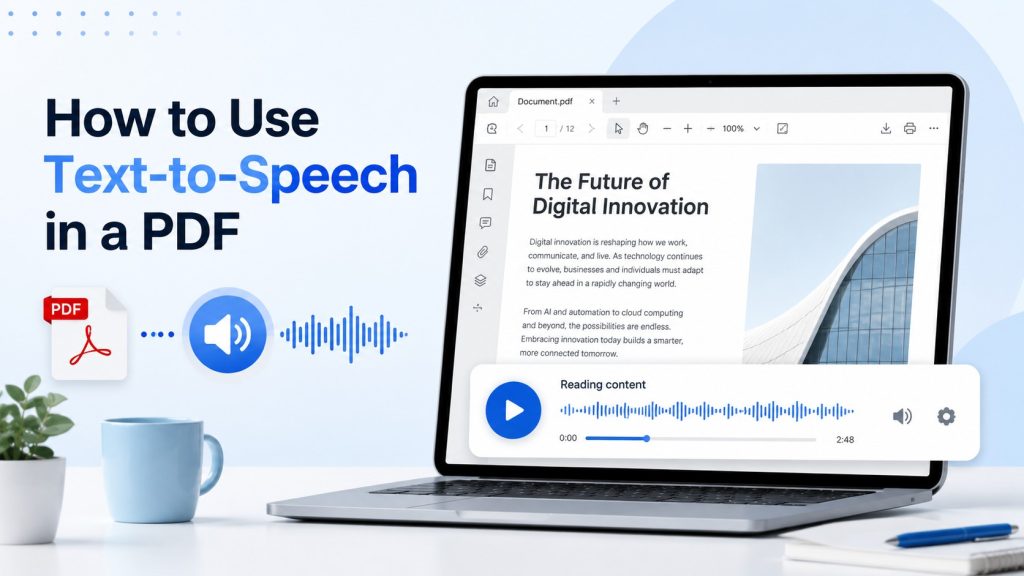
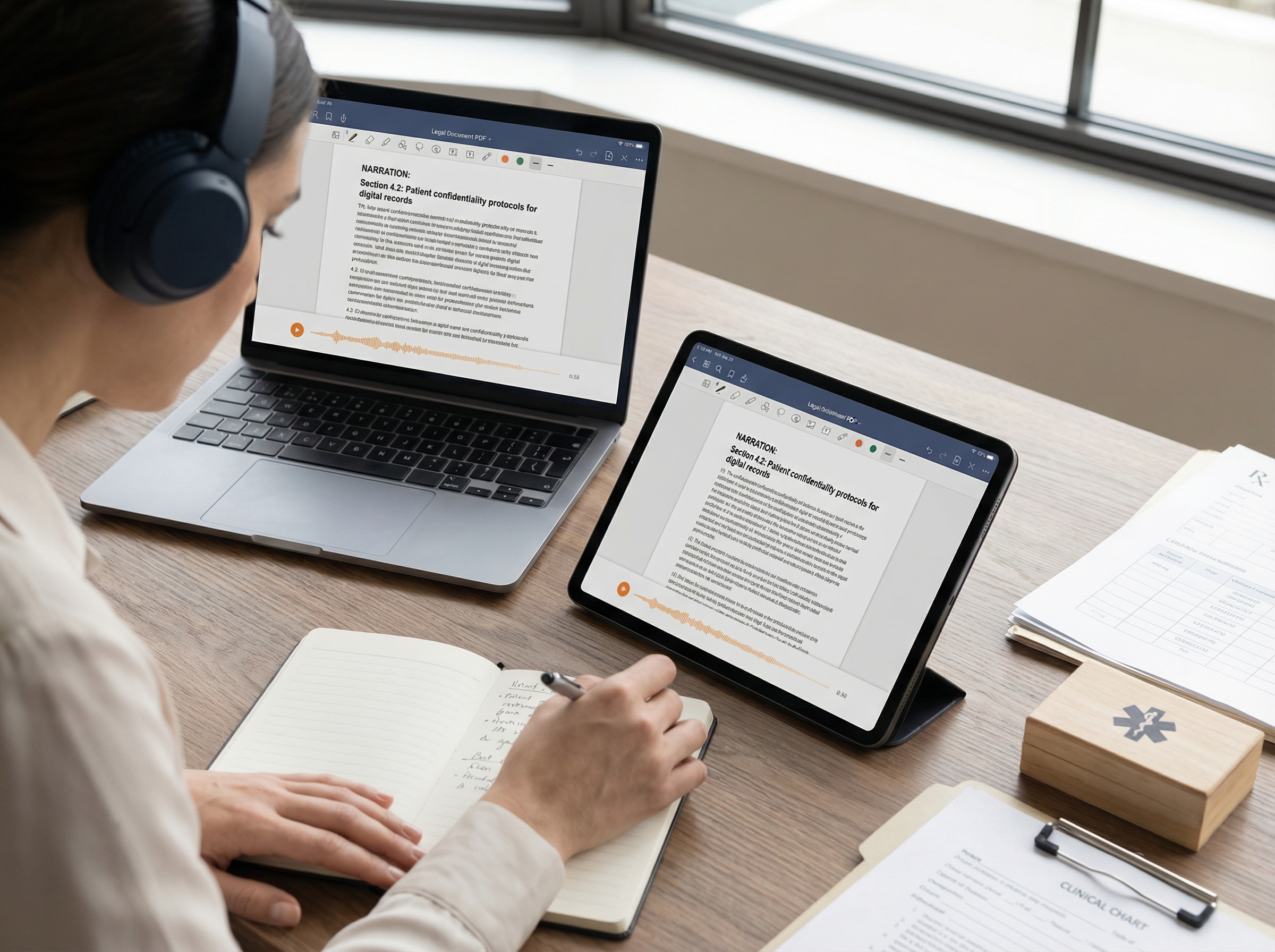
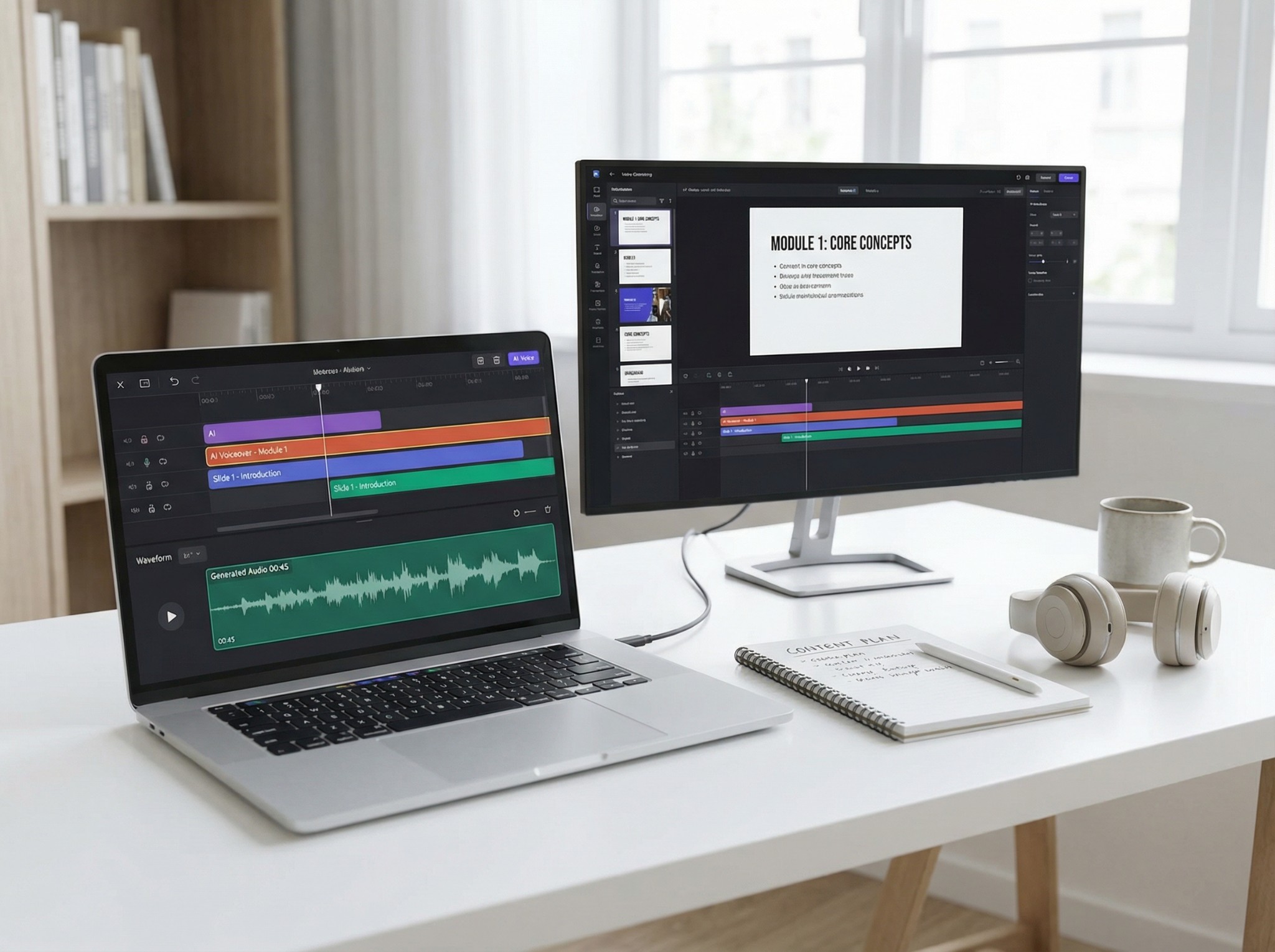
To use text-to-speech with a PDF, upload the document to a TTS tool that supports PDF files, choose a voice and language, adjust the playback settings, and start listening. If the PDF contains scanned pages rather than machine-readable text, optical character recognition (OCR) may be needed first. Once the content has been processed, you can listen to it or download the generated audio if the tool supports audio export.
PDF text-to-speech can be useful when you want an alternative to reading continuously on a screen. It can make reports, research papers, study materials, ebooks, manuals, and other long documents easier to work through in audio form.
The process is usually straightforward, but not every PDF works the same way.
The most important distinction is whether the PDF contains machine-readable text or consists mainly of scanned images of text. Complex layouts can also create challenges, particularly when documents contain multiple columns, tables, footnotes, headers, sidebars, or other visual elements. In these cases, the text may be extracted or read aloud in an unexpected order.
This guide explains how to use text-to-speech with a PDF, how to handle scanned documents with OCR, and what to check when a PDF is not recognized or read aloud correctly.
Quick Answer (TL;DR)
For a standard text-based PDF, the basic process is:
- Open a text-to-speech tool that supports PDF files.
- Upload the PDF.
- Allow the tool to process and extract the text.
- Choose a voice and language.
- Adjust settings such as speaking speed, pitch, or voice style if available.
- Start listening.
- Download the generated audio if the tool supports audio export.
For most text-based PDFs, this is all that is required.
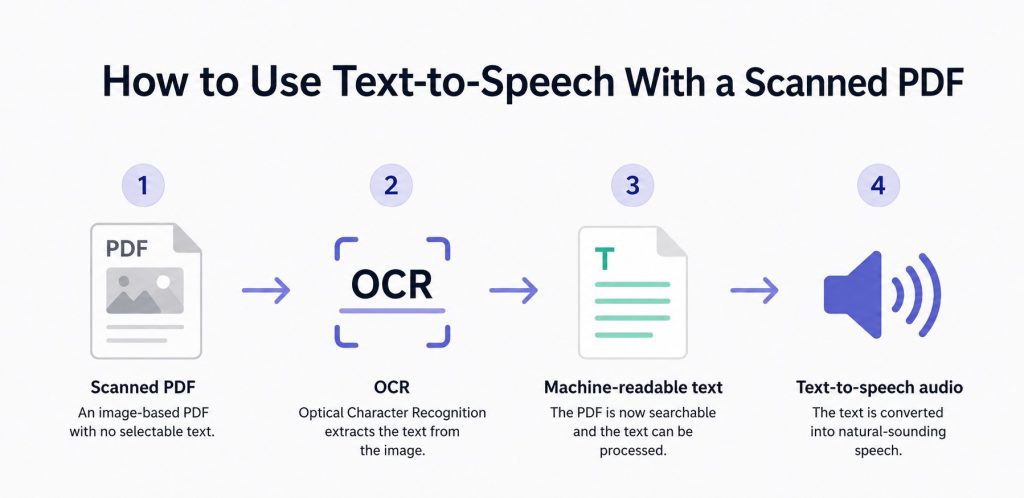
The process is slightly different for scanned or image-based PDFs. Because the text is stored as part of an image, optical character recognition (OCR) may be needed to detect and extract the words before they can be converted into speech.
First, Check What Type of PDF You Have
Before troubleshooting a PDF, first determine whether it contains machine-readable text or images of text.
The 5-Second PDF Test
Open the PDF and try to select a sentence with your cursor.
If you can highlight individual words and letters, the document probably contains a text layer and may be ready for text-to-speech processing.
If you cannot select individual words, or the entire page behaves like a single image, the PDF may be scanned or image-based. In that case, optical character recognition (OCR) may be needed before the content can be converted into speech.
According to the W3C guidance on OCR for scanned PDFs, scanned PDF documents may contain images of text rather than searchable, machine-readable text. OCR can be used to recognize that text and make it available for further processing.
The selection test is a useful first check, but it is not perfect. A PDF may contain selectable text and still have problems with text extraction, character encoding, document structure, or reading order.
Here is a simple way to identify the most common PDF types:
| PDF type | What it contains | What to do |
| Text-based PDF | Machine-readable text | Upload it directly to a TTS tool |
| Scanned PDF | Images of printed pages | Use OCR to recognize the text before converting it to speech |
| Mixed PDF | A combination of machine-readable text and scanned pages | OCR may be needed for the scanned sections |
| Complex PDF | Columns, tables, sidebars, footnotes, or unusual layouts | Check whether the extracted text and audio follow the intended reading order |
How to Read a Text-Based PDF Aloud
A text-based PDF is usually the easiest type of document to use with text-to-speech. These files are typically created digitally and exported as PDFs rather than produced by scanning printed pages.
Common examples include:
- research papers
- business reports
- class materials
- ebooks
- manuals
- white papers
- policies
- contracts
- articles saved as PDFs
- documents exported from word-processing software
If you can select and copy the text normally, the PDF can usually be processed directly by a text-to-speech tool. Upload the document and allow the tool to extract and prepare the text for speech.
Once the document is ready, choose a voice and adjust the playback speed based on the type of content. A slower speed may be more comfortable for technical, detailed, or unfamiliar material, while faster playback can work well when reviewing content you already know.
You can then start listening. If the tool supports audio export, you may also be able to download the generated audio for later use.
How to Use Text-to-Speech With a Scanned PDF
A scanned PDF works differently from a standard text-based PDF.
A scanned page may look perfectly readable to a person while containing no machine-readable text. From the software’s perspective, the page may simply be an image.
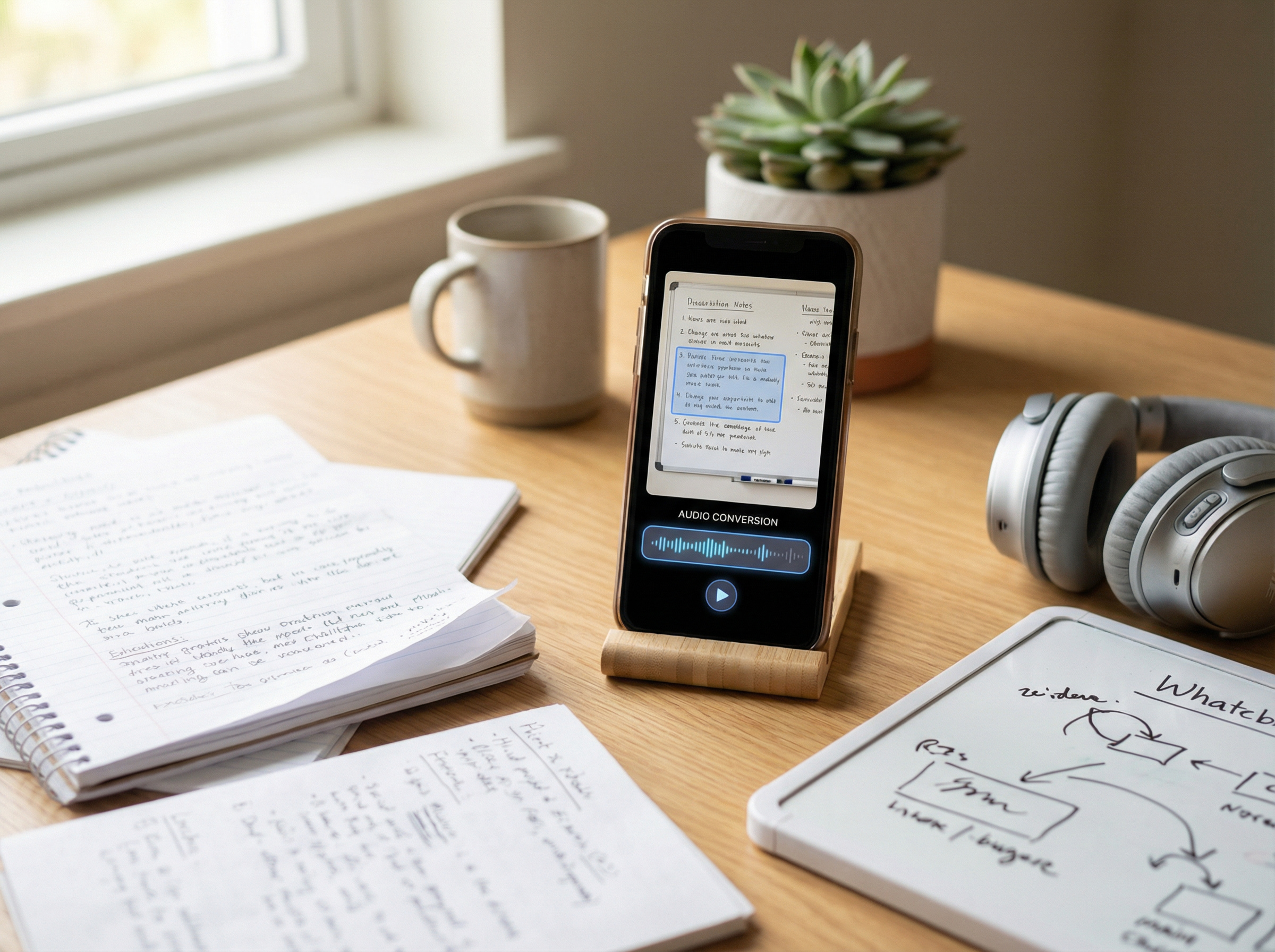
In this case, optical character recognition (OCR) is needed before text-to-speech can process the content. OCR detects the letters and words visible in an image and converts them into machine-readable text. That text can then be converted into spoken audio.
The W3C guidance on OCR for scanned PDF documents explains that image-only documents need to be converted into actual text before assistive technologies can properly access the written content.
If your text-to-speech tool supports OCR for scanned PDFs, it can recognize the text and prepare it for speech without requiring you to manually retype each page.
The same process can also be used with photos and screenshots that contain text, provided the TTS tool supports OCR for images.
What Can Affect OCR Accuracy?
OCR can be very useful, but the results are not always perfect. Recognition accuracy can be affected by:
- blurry scans
- low-resolution images
- pages photographed at an angle
- poor lighting
- unusual fonts
- handwriting
- faded text
- low contrast
- text placed over images
- multiple columns
- complex tables
- damaged pages
If something sounds incorrect after OCR processing, compare the recognized text or spoken output with the original document.
This is particularly important when the content includes:
- names
- dates
- numbers
- financial values
- formulas
- abbreviations
- technical terminology
The W3C guidance on scanned PDFs also recommends checking that OCR-converted content is complete and follows the intended reading order. One way to verify this is to listen to the document and compare the spoken content with the original pages.
Using TheSpeakr to Read PDFs Aloud
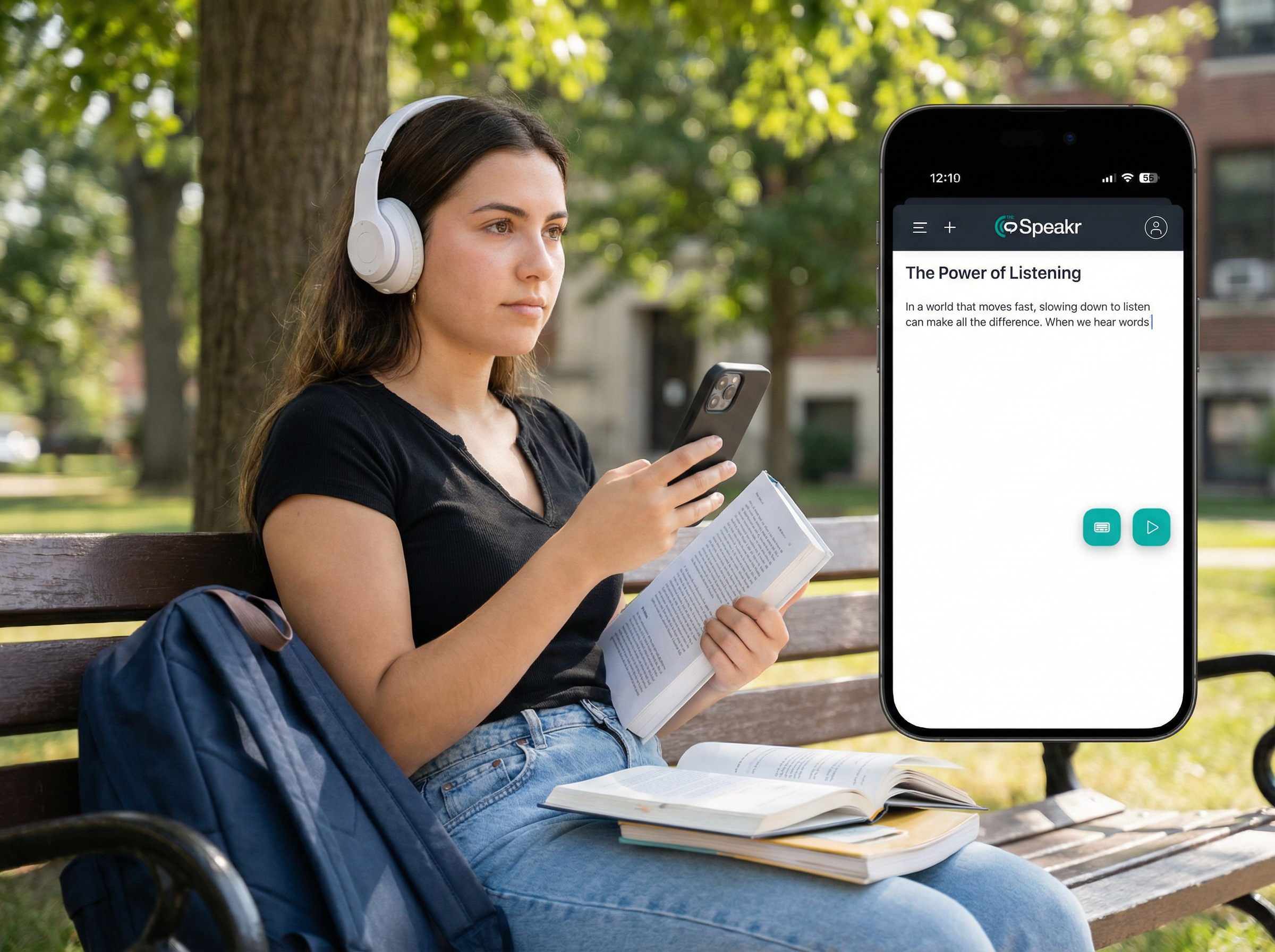
For users who want a simple way to turn PDFs into audio, TheSpeakr provides a practical workflow for both standard and scanned documents.
Text-based PDFs can be uploaded directly and converted into speech. If a PDF contains scanned or image-based pages, TheSpeakr can use OCR to recognize and extract the visible text before generating the audio.
The platform also allows users to choose a voice and language, adjust speech settings, listen to the generated audio online, and download it as an MP3 when they want to keep the audio for later.
This makes TheSpeakr particularly useful for people who regularly work with reports, research papers, study materials, manuals, ebooks, and other long PDF documents. Instead of requiring separate tools for text extraction, OCR, and speech generation, these steps can be handled within the same workflow.
As with any PDF text-to-speech tool, the quality of the result still depends on the source document. Scanned pages should be checked for OCR errors, while PDFs with complex layouts may require additional attention to reading order.
Why Text-to-Speech May Not Work Correctly With a PDF
If a PDF does not sound right when read aloud, the problem may not be the voice or playback settings. In many cases, the issue occurs earlier, when the text is extracted, recognized, or ordered for processing.
| Problem | Possible cause | What to check |
| No text is detected | The PDF contains scanned or image-based pages | Try OCR |
| Some content is missing | Text extraction or OCR did not capture everything | Compare the output with the original PDF |
| Words are incorrect | OCR recognition error | Check the scan quality and recognized text |
| Sentences are read in the wrong order | The PDF has a reading-order or layout problem | Check columns, sidebars, footnotes, and other layout elements |
| Random symbols appear | Font or character-encoding issue | Copy a section of the PDF and inspect the pasted text |
| Headers repeat throughout the audio | Headers or footers are included in the extracted reading flow | Check how the source document is structured |
| Tables sound confusing | The visual table structure does not translate well into linear speech | Review the table visually or separately |
| Some pages work and others do not | The PDF contains a mix of digital text and scanned pages | Check whether individual pages require OCR |
Identifying where the problem occurs is usually more useful than repeatedly changing the voice or playback settings. If the extracted text is incomplete, incorrect, or out of order, those issues should be addressed before adjusting how the speech sounds.
What Is PDF Reading Order?
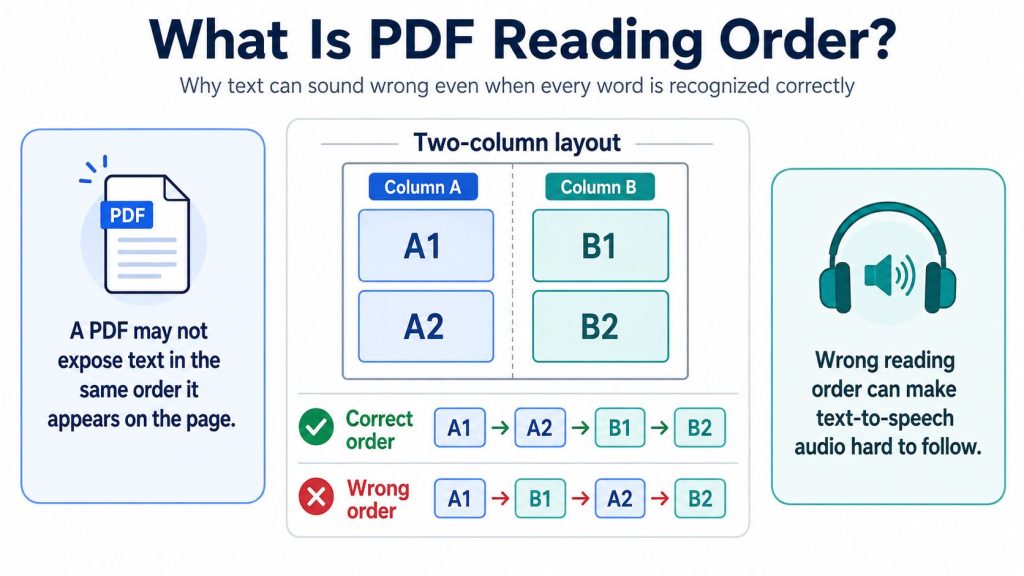
A PDF does not always store or expose text in the same order in which it appears visually on the page. This is especially important in documents with multiple columns or complex layouts.
For example, imagine a two-column research paper. The intended reading order might be:
Column A: A1, A2
Column B: B1, B2
The content should normally be read as:
A1, A2, B1, B2
However, a poorly structured PDF might expose the text as:
A1, B1, A2, B2
Every individual word may be recognized correctly, but the resulting audio can still be difficult to follow because the content is being read in the wrong sequence.
The W3C guidance on PDF reading order explains that reading order is closely related to a PDF’s logical document structure and tag order.
Similar problems can occur with:
- sidebars
- tables
- footnotes
- captions
- headers and footers
- forms
- text boxes
- graphics surrounded by text
It is also important to distinguish between OCR, reading order, and text-to-speech because they solve different problems.
OCR identifies and extracts text from images. Reading order determines the sequence in which document content should be interpreted. Text-to-speech converts that text into spoken audio.
A TTS tool can read the text it receives, but it cannot always correct a PDF that has an incorrect or poorly defined document structure. If the text is extracted in the wrong order, the PDF itself may need to be reviewed or corrected.
What to Do If the PDF Is Read in the Wrong Order
If the individual words sound correct but the document still feels disorganized, the problem may be the structure of the source PDF rather than the text-to-speech tool.
A simple way to check is to copy a section of the PDF and paste it into a plain-text editor. If the text already appears in the wrong order after pasting, the PDF’s underlying structure is likely causing the problem.
Possible solutions include:
- finding a better-structured version of the document
- using the original Word or other source file, if available
- correcting the document before exporting it as a PDF
- simplifying a complex page layout
- creating a properly structured or tagged PDF with an appropriate PDF authoring tool
- creating a simpler version that contains only the content you need to hear
These are source-document fixes rather than text-to-speech features.
The W3C guidance on PDF reading order explains that a PDF’s logical structure and reading order should be defined so that content is presented in a meaningful sequence.
After correcting or simplifying the source document, upload the updated PDF to your text-to-speech tool and test it again.
Final Thoughts
Using text-to-speech with a PDF is usually straightforward when the document contains clean, machine-readable text. Scanned PDFs may require OCR first, while complex layouts can create reading-order problems even when the text itself is recognized correctly.
The key is to identify what type of PDF you are working with, use OCR when needed, and check the extracted text if the audio sounds incomplete or disorganized.
With the right document structure and a suitable TTS tool, PDFs can be turned into a practical audio format for studying, reviewing reports, working through research, or simply listening instead of reading from a screen.
Frequently Asked Questions
Can text-to-speech read any PDF?
Not always. Text-based PDFs can usually be processed directly, while scanned or image-based PDFs may require OCR first. Complex layouts, tables, columns, footnotes, and unusual formatting can also affect how accurately the content is extracted and read aloud.
How do I make a PDF read aloud?
Upload the PDF to a text-to-speech tool that supports PDF files, allow the document to be processed, choose a voice and language, adjust the playback settings, and start listening. If the file is scanned, OCR may be required before the text can be converted into speech.
What is the difference between a text-based PDF and a scanned PDF?
A text-based PDF contains machine-readable text that can usually be selected, copied, and processed directly by TTS software. A scanned PDF contains images of text, so OCR is typically needed to recognize the words first.
What is OCR in PDF text-to-speech?
OCR stands for optical character recognition. It detects text inside scanned pages, photos, screenshots, and other images and converts it into machine-readable text. That text can then be processed by a text-to-speech system.