How to Use Text-to-Speech for Proofreading: A Practical Step-by-Step Guide
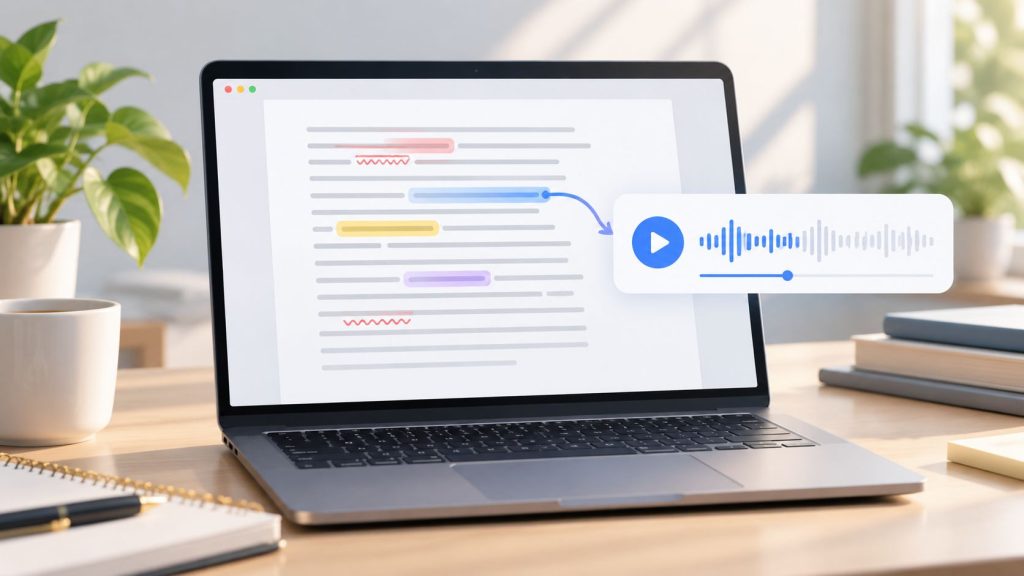
Proofreading your own writing can be difficult because familiarity makes it easy to overlook missing words, repeated phrases, awkward sentences, and other problems. After reading the same text several times, you may start seeing what you intended to write rather than what is actually on the page.
Text-to-speech, or TTS, provides another way to review a draft by converting written text into spoken audio. Listening can make certain issues easier to notice, especially problems with sentence flow, repetition, punctuation, and wording that sounds unnatural when read aloud.
TTS does not replace careful editing, grammar checks, or a final visual review. Instead, it works best as an additional proofreading method that helps you experience your writing from a different perspective.
Why Text-to-Speech Helps With Proofreading
Proofreading your own writing can be difficult because you already know what the text is supposed to say. After reading the same paragraph several times, it becomes easy to move through it too quickly and overlook missing words, repeated phrases, awkward sentences, or other small problems.
Text-to-speech changes the way you experience the draft by turning the written text into spoken audio. Instead of relying only on how the words look on the page, you hear what is actually there. A missing word may make a sentence sound incomplete, a repeated word can become more obvious, and awkward or repetitive phrasing may stand out more clearly when the paragraph is heard continuously.
Reading a draft aloud is already a common proofreading technique, and writing resources such as Purdue Writing Lab and the Oregon State University Writing Center recommend reading writing aloud, or having it read aloud, as a way to identify errors and unclear passages. TTS applies the same basic principle without requiring you to read the entire document yourself.
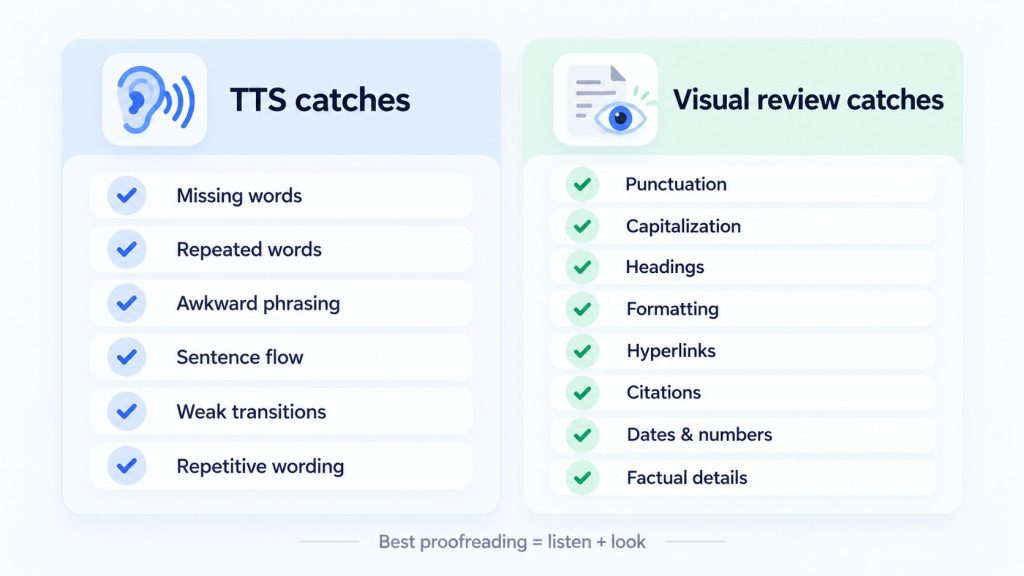
However, TTS should be treated as a proofreading aid rather than an automatic proofreader. A synthetic voice can still read incorrect facts, misspelled homophones, inaccurate citations, and some punctuation errors without signaling that anything is wrong. For that reason, the strongest workflow combines listening with a final visual review rather than replacing one with the other.
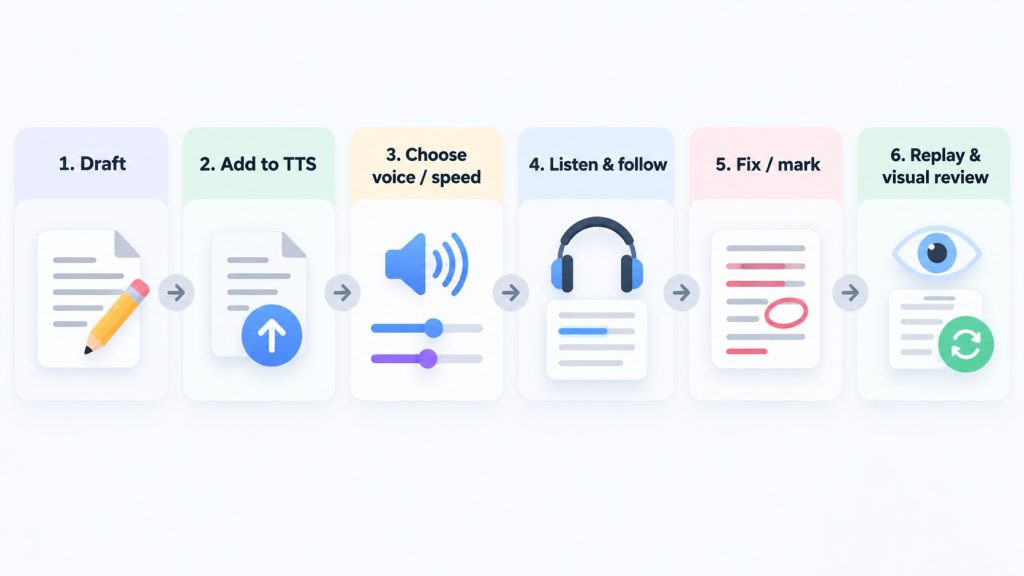
How to Proofread With Text-to-Speech: 6 Steps
1. Finish Major Revisions First
Start with a reasonably stable draft. Your first TTS proofreading pass should not be the time to decide whether the introduction needs a new argument, several sections should be rearranged, or large parts of the document should be rewritten.
Before listening, complete the major decisions about:
- structure
- missing information
- argument or narrative order
- major cuts and additions
- source selection
This makes it easier to focus on sentence-level problems when you begin listening instead of repeatedly stopping to restructure the document. For a short email, this stage may take only a few seconds, while an article, essay, report, or manuscript may require several revision passes first.
2. Paste or Upload Your Draft
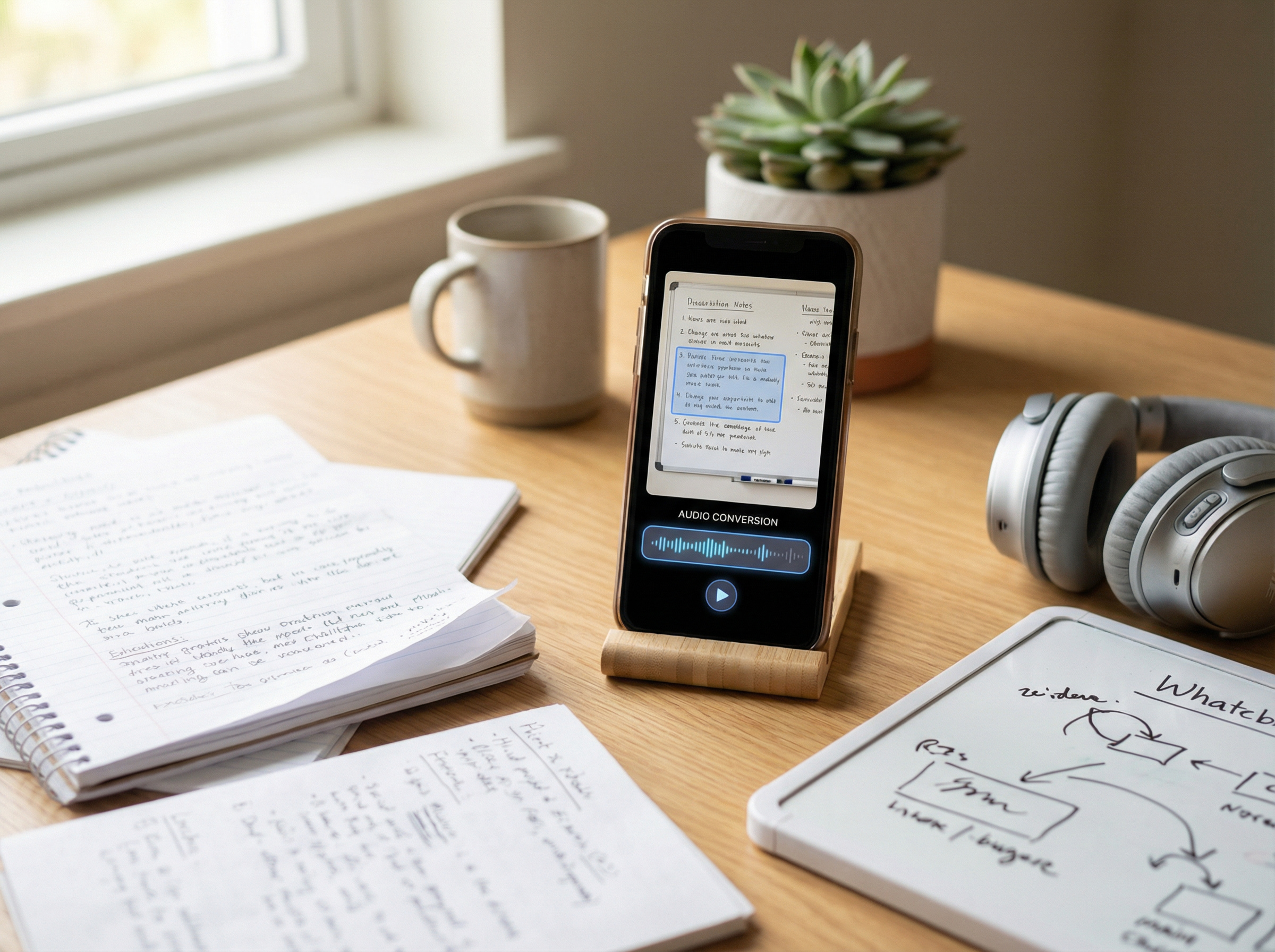
Add the draft to your text-to-speech tool using the method that best fits the document. With TheSpeakr, you can type or paste text directly, provide a webpage URL, or work with supported files such as PDFs, Word documents, and plain-text files. OCR can also be used to recognize text in scanned PDFs, screenshots, and photos.
In practice:
- Paste the text when you want a clean proofreading copy and do not need to preserve the original layout.
- Upload the document when reviewing a longer PDF or Word file without manually copying the text.
- Use a webpage URL when proofreading or reviewing text published online.
- Use OCR when the source is a scan, screenshot, photo, or image-based PDF without usable machine-readable text.
If you are working with a complex PDF or scanned document, check the extracted content before starting your proofreading pass. Multi-column layouts, sidebars, headers, footers, poor scan quality, or unusual document structures can affect extraction or reading order.
3. Choose a Clear Voice and Comfortable Speed
There is no single ideal playback speed for proofreading. The best setting is one that lets you follow each sentence closely enough to notice missing words, repetition, awkward phrasing, and other problems without constantly rewinding.
Even if you normally listen to podcasts or audiobooks at a high speed, proofreading may require a slower pace because you are paying attention to individual words and sentence structure rather than simply following the main idea. A useful rule is to prioritize clarity over speed.
Consider slowing the playback when:
- you are missing small words
- sentences are long or technically complex
- the document contains unfamiliar terminology
- you are proofreading in a non-native language
- you repeatedly need to replay the same passage
You can increase the speed when reviewing broader flow rather than looking for word-level issues. Voice selection also matters less for expressiveness than for clarity, so choose a voice and playback settings that are easy to follow without distracting you from the writing itself.
4. Listen While Following the Text on Screen
For the main proofreading pass, listen to the audio while following the text on screen. This gives you two signals at the same time: the audio shows how the sentence sounds, while the written version shows exactly what is on the page.
Listen especially for:
- missing words
- repeated words or phrases
- sentences that are difficult to follow
- awkward or unnatural wording
- weak transitions
- repetitive sentence openings
- unnecessary repetition of the same word or idea
- passages that sounded fine during silent reading but feel awkward when heard aloud
When something sounds wrong, pause and look at the corresponding sentence on screen. Following the text visually makes it easier to locate the problem and determine whether it comes from wording, punctuation, repetition, or sentence structure.
Avoid treating the audio as background listening during this stage. If you are answering messages, browsing another page, or concentrating on another demanding task, you are more likely to miss the small problems that make TTS useful for proofreading in the first place.
5. Fix Simple Errors and Mark Larger Problems
You do not need to stop the audio for every issue you notice. Whether to edit immediately or make a note for later depends on the type of problem.
| What you notice | Best response |
| Missing word | Pause, fix it, and replay the sentence |
| Repeated word | Pause and fix it |
| Obvious typo | Fix it immediately |
| Awkward sentence | Mark it if the solution is not obvious |
| Weak transition | Mark it and continue |
| Paragraph pacing problem | Keep listening and return to it later |
| Major structural issue | Make a note and finish the listening pass first |
Stopping for every stylistic concern can make it difficult to judge the overall flow of the document. At the same time, ignoring obvious mechanical errors means you will have to find them again later.
A practical approach is to fix simple errors when the correction is obvious and mark larger editorial problems when they require more thought. If you are doing a separate pass specifically for flow and readability, you may prefer to avoid editing entirely and simply make notes as you listen.
6. Replay Changes and Finish With a Visual Review
After making a significant change, replay the sentence or surrounding paragraph to make sure the revision works in context. A correction that looks better on screen can still introduce a repeated word, an awkward transition, or a sentence that no longer connects smoothly with what comes before or after it.
Once the listening pass is complete, perform a final visual review for elements that TTS cannot reliably check, including:
- punctuation
- quotation marks
- capitalization
- headings
- bullet and list formatting
- hyperlinks
- tables
- spacing
- citations and source names
- dates and numerical values
- factual claims
Do not skip the visual review simply because the document sounded correct. Text-to-speech can help reveal problems with wording, repetition, sentence flow, and missing text, but audio cannot show the complete document or verify whether every factual and visual detail is correct.
Best TTS Settings for Proofreading
You do not need complicated settings to proofread effectively with text-to-speech. The most useful adjustments are usually the voice, playback speed, text highlighting, and basic playback controls.
Choose a Clear Voice
Choose a voice that remains easy to understand over longer listening sessions. A natural-sounding voice can make proofreading more comfortable, but clarity is more important than personality or expressiveness.
If pronunciation, pacing, or vocal style distracts you from the writing itself, try another voice. The goal is to notice problems in the text rather than focus on the voice reading it.
Adjust the Playback Speed
Start at a pace that feels deliberate rather than rushed. You can increase the speed when checking overall flow and reduce it when reviewing complex sentences, technical writing, unfamiliar terminology, or small wording differences.
There is no universally correct proofreading speed such as 0.9×, 1.25×, or 1.5×. The right setting depends on the document, voice, language, and type of proofreading you are doing. If you regularly miss words or need to replay sentences, slowing down is usually more useful than trying to finish faster.
Use Text Highlighting
When available, synchronized text highlighting can make it easier to follow the written text while listening. It also helps you quickly locate the exact word or sentence when something sounds wrong.
This can be especially useful with longer documents, where finding the relevant sentence manually may interrupt the proofreading flow.
Pause and Replay Difficult Passages
For proofreading, simple playback controls can be more useful than advanced voice effects. When a sentence sounds unusual, pause the audio, inspect the text, make the necessary change, and replay the sentence before continuing.
A simple workflow is:
- Pause when something sounds wrong.
- Inspect the relevant text.
- Make the correction.
- Replay the sentence.
- Continue listening.
Repeating this process helps confirm that the correction works not only on the page but also when the sentence is heard in context.
How to Proofread Different Types of Content With TTS
The basic text-to-speech workflow is similar across document types, but the problems you listen for will vary depending on the content.
| Document type | Pay particular attention to |
| Essay | argument flow, repeated phrases, transitions, citations |
| Blog article | readability, repetitive structure, awkward headings, calls to action |
| missing words, tone, unclear requests, names, and dates | |
| Report | technical terminology, figures, long sentences, section transitions |
| Manuscript | rhythm, dialogue, repeated expressions, pacing |
| reading order, OCR errors, repeated headers or footers | |
| Presentation text | overly long sentences, repetition, and wording that sounds unnatural aloud |
For short texts such as important emails, it may be useful to listen to the entire message once before making changes. This gives you a better sense of the overall tone and clarity before you start editing individual sentences.
For longer documents, separate proofreading passes can make it easier to focus on one type of problem at a time. A practical workflow might look like this:
- Pass 1: Check for missing or repeated words.
- Pass 2: Listen for sentence clarity, awkward wording, and rhythm.
- Pass 3: Review paragraph flow and transitions.
- Final visual pass: Check formatting, punctuation, citations, links, figures, and factual details.
Trying to evaluate every aspect of a long document at once can make it easier to overlook problems. Breaking the process into focused passes keeps the listening task more manageable and makes each review more purposeful.
How to Use TheSpeakr for Proofreading

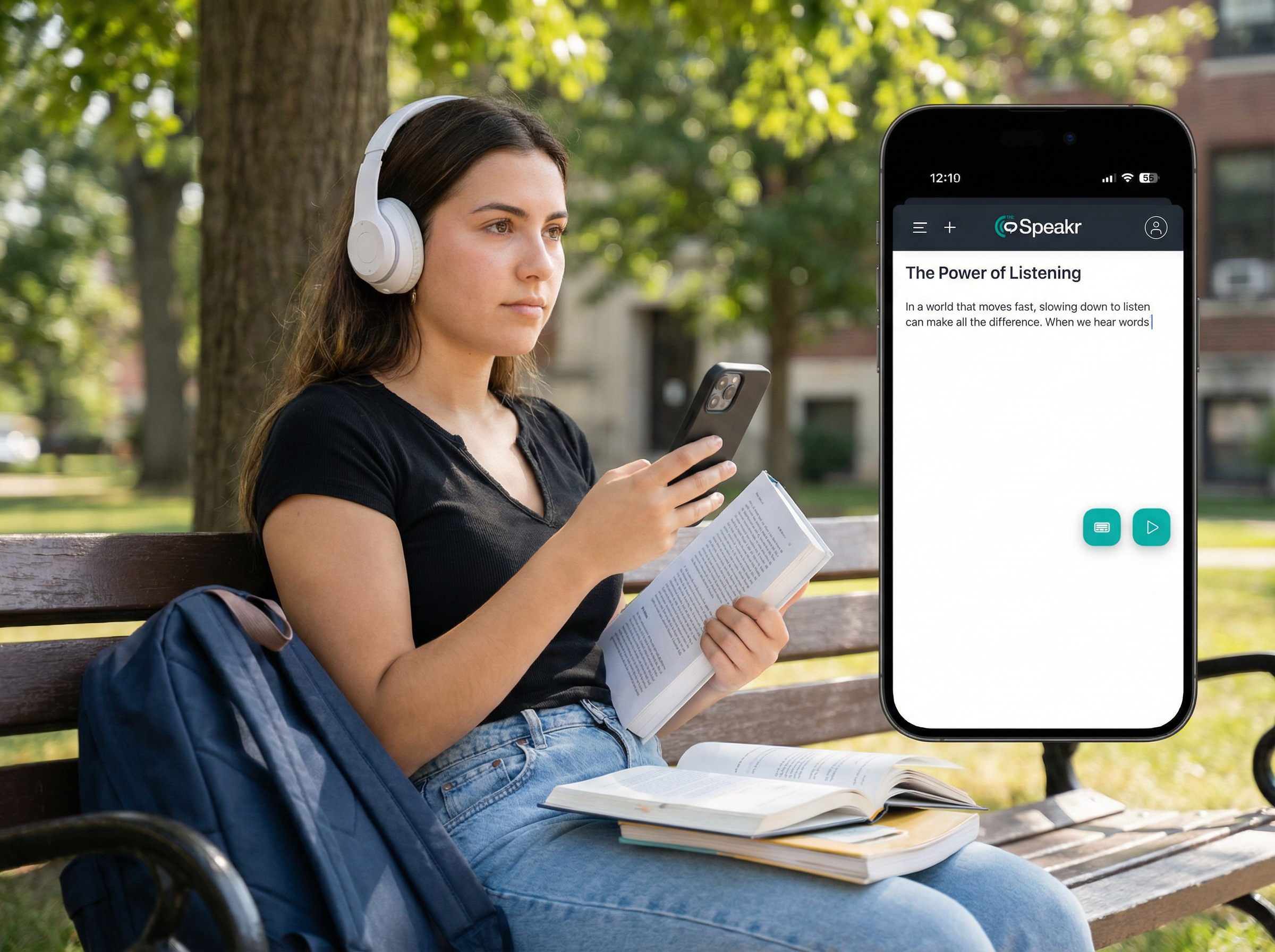
TheSpeakr can be used as the listening stage of a proofreading workflow, allowing you to hear your draft while reviewing the original text. You can work with pasted text, webpages, PDFs, Word documents, plain-text files, and image-based materials processed with OCR.
1. Add Your Draft
Paste or type your text directly into TheSpeakr, provide a webpage URL, or upload a supported document. For screenshots, photos, or scanned PDFs, OCR can recognize the visible text and convert it into speech.
Choose the option that best matches your draft. Pasting text works well for short pieces, while document uploads are convenient for longer articles, essays, reports, and PDFs.
2. Choose a Clear Voice
Select a voice that is comfortable and easy to understand. When proofreading, a clear voice makes it easier to concentrate on wording, sentence flow, repetition, and missing words rather than on the voice itself.
You can try different voices until you find one that works well for the type of content you are reviewing.
3. Adjust the Playback Speed
Set the playback speed to a level that lets you follow the text comfortably. A slower pace can be useful for detailed sentence-level proofreading, while a slightly faster speed may work better when reviewing overall flow and readability.
TheSpeakr’s adjustable playback settings make it easy to change the pace between different proofreading passes.
4. Listen While Reviewing the Draft
Follow the written text while TheSpeakr reads it aloud and pause whenever something sounds unclear or unnatural. You can make notes, correct simple errors, and mark sentences that need more substantial revision.
Listening and reading together gives you two ways to evaluate the same text, which can make missing words, repetition, awkward phrasing, and uneven sentence flow easier to notice.
5. Replay Your Revised Sections
After making changes, listen to the revised sentence or paragraph again to hear how it works in context. You can repeat this process as many times as needed while refining the draft.
A short paragraph is a good place to start if you are using TheSpeakr for proofreading for the first time. Once you are comfortable with the workflow, you can apply the same process to longer essays, articles, reports, emails, and other written content.
Frequently Asked Questions
Does text-to-speech help with proofreading?
TTS can provide a useful additional proofreading pass by reading the exact text back to you. Missing words, duplicated words, awkward phrasing, repetition, and unclear sentence construction may become easier to notice when heard aloud. It should complement rather than replace visual proofreading.
How do you proofread with text-to-speech?
Finish your main revisions, paste or upload the draft to a TTS reader, choose a clear voice and comfortable playback speed, and listen while following the text on screen. Pause or mark problematic passages, make corrections, replay edited sections, and finish with a visual check.
What mistakes can text-to-speech help you catch?
TTS is particularly useful for identifying problems that affect how a sentence sounds, including missing words, duplicated words, repetitive phrasing, awkward sentence structure, weak transitions, and passages that are difficult to follow.
Should I fix mistakes immediately or wait until the end?
Fix obvious mechanical errors immediately when the correction is simple. For larger issues involving style, transitions, paragraph flow, or restructuring, mark the location and continue listening. Returning to those issues later helps preserve the continuity of the listening pass.
Can I proofread a PDF by listening to it?
Yes, provided the PDF contains readable text or has been processed with OCR. For scanned or complex PDFs, first verify that the text has been extracted correctly. A PDF with an incorrect logical reading order may sound scrambled even though it looks correct on screen.