5 Practical Ways to Use Text-to-Speech Every Day
Text-to-speech can make everyday reading more flexible by converting written content into spoken audio. It can be useful for work, study, proofreading, web content, and image-based text, especially when listening is more convenient than reading from a screen.
The best way to use TTS depends on the type of content and what you need to do with it. Some material works well as audio on its own, while documents with tables, charts, or other visual elements are better reviewed alongside the original source.
TL;DR – Practical Ways to Use Text-to-Speech Every Day
Five useful ways to use text-to-speech are:
- Listen to articles while commuting, walking, or doing chores.
- Turn PDFs, reports, and study notes into audio.
- Proofread emails and documents by listening.
- Read printed pages, screenshots, and scans with OCR.
- Practice pronunciation and listening in another language.
The goal is not to turn everything you read into audio. TTS works best when you use listening where it makes reading, reviewing, or studying more convenient without losing important visual context.
What Can You Use Text-to-Speech For?
Text-to-speech, usually shortened to TTS, converts written text into spoken audio. It gives you another way to work with everyday content such as articles, documents, notes, emails, PDFs, and study materials without relying only on screen-based reading.
TTS can be useful for listening to longer articles, reviewing documents, proofreading your own writing, studying from notes, working with PDFs, and turning scanned or image-based text into audio with OCR. You can also use it to hear unfamiliar words and practice listening in different languages.
Different types of content can be handled in different ways. You might paste text directly, provide a webpage URL, upload a PDF or Word document, or use OCR with a screenshot, photo, or scanned page. This makes TTS useful across a wide range of everyday reading and review tasks.
TTS is different from speech-to-text, which converts spoken words into written text, and from a full screen reader, which includes broader accessibility and navigation features. For everyday reading, studying, reviewing, and listening, TTS provides a simple way to turn supported written content into audio and choose when listening works better for the task.
5 Everyday Ways to Use Text-to-Speech
The most useful TTS workflow depends on the type of content you want to hear. A webpage, PDF, scanned page, and written draft each benefit from a slightly different approach, so matching the input method to the task makes everyday listening easier.
Here are five practical ways to use text-to-speech with content you already read, review, or study.
1. Listen to Articles While Commuting or Doing Chores
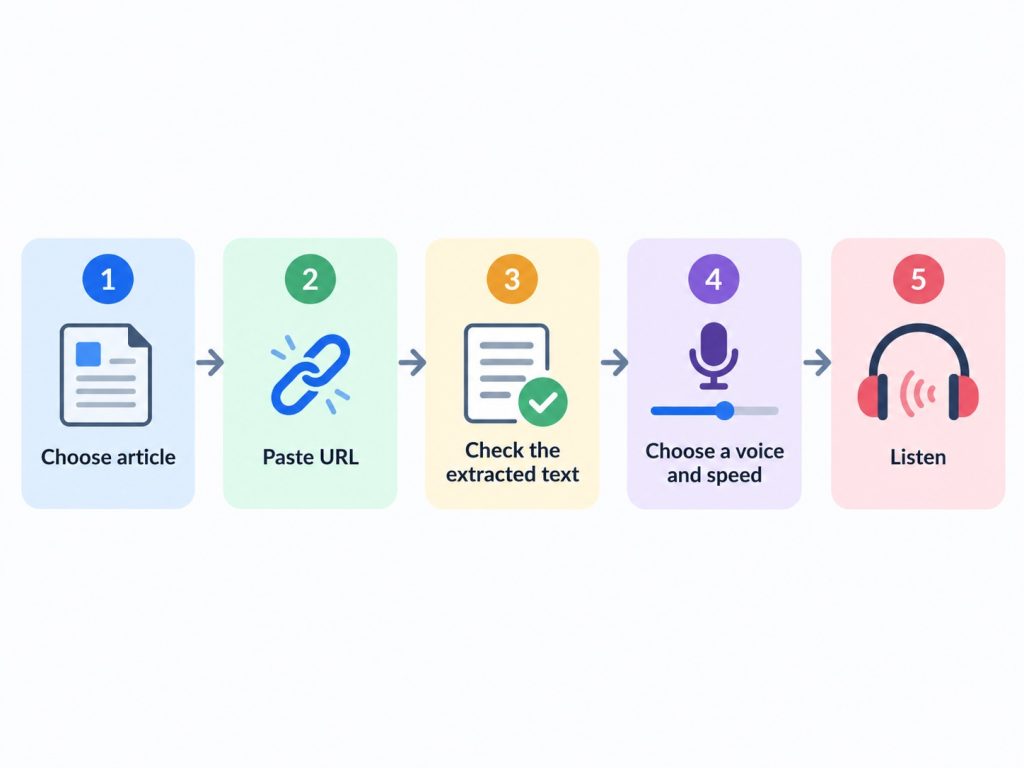
Long-form articles, blog posts, newsletters, essays, and other text-heavy webpages are well suited to listening. Instead of staying in front of a screen, you can turn suitable web content into audio and continue through your reading list while walking, commuting, cooking, exercising, or doing another routine activity.
URL-based reading is particularly convenient because you do not need to copy an entire article manually. Once the readable content is extracted, you can choose a comfortable voice and adjust the playback speed to match the material.
Before listening to a longer article, quickly check that the main content has been extracted correctly. If the page includes important charts, tables, images, or other visual information, keep the original webpage available so you can return to those elements when needed.
When listening while traveling, prepare the content before starting your journey and avoid interacting with your phone while driving. This keeps the workflow convenient without creating unnecessary distractions.
Best for: articles, blog posts, newsletters, essays, research overviews, and other text-heavy webpages.
2. Turn PDFs, Reports, and Study Notes Into Audio
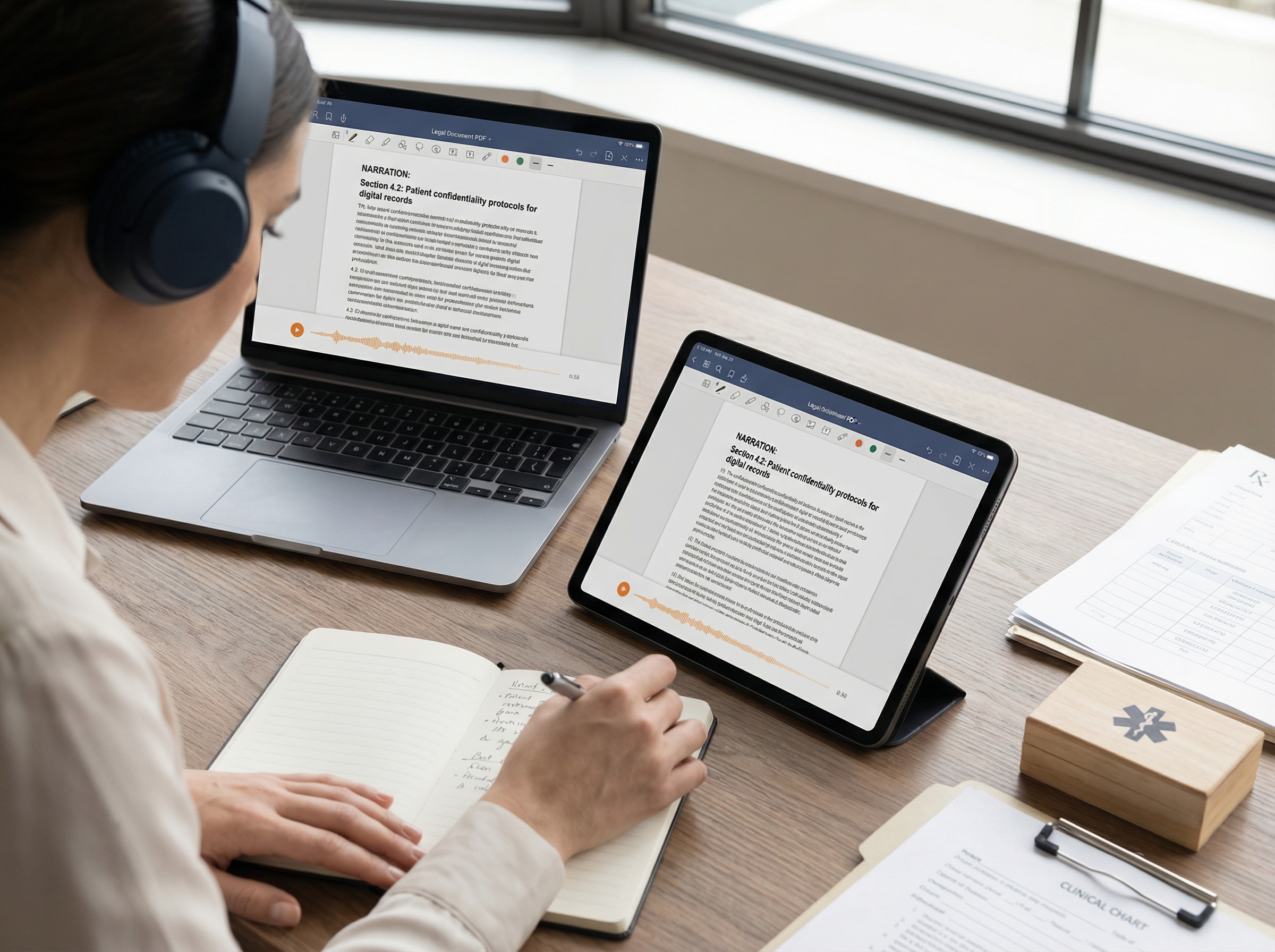
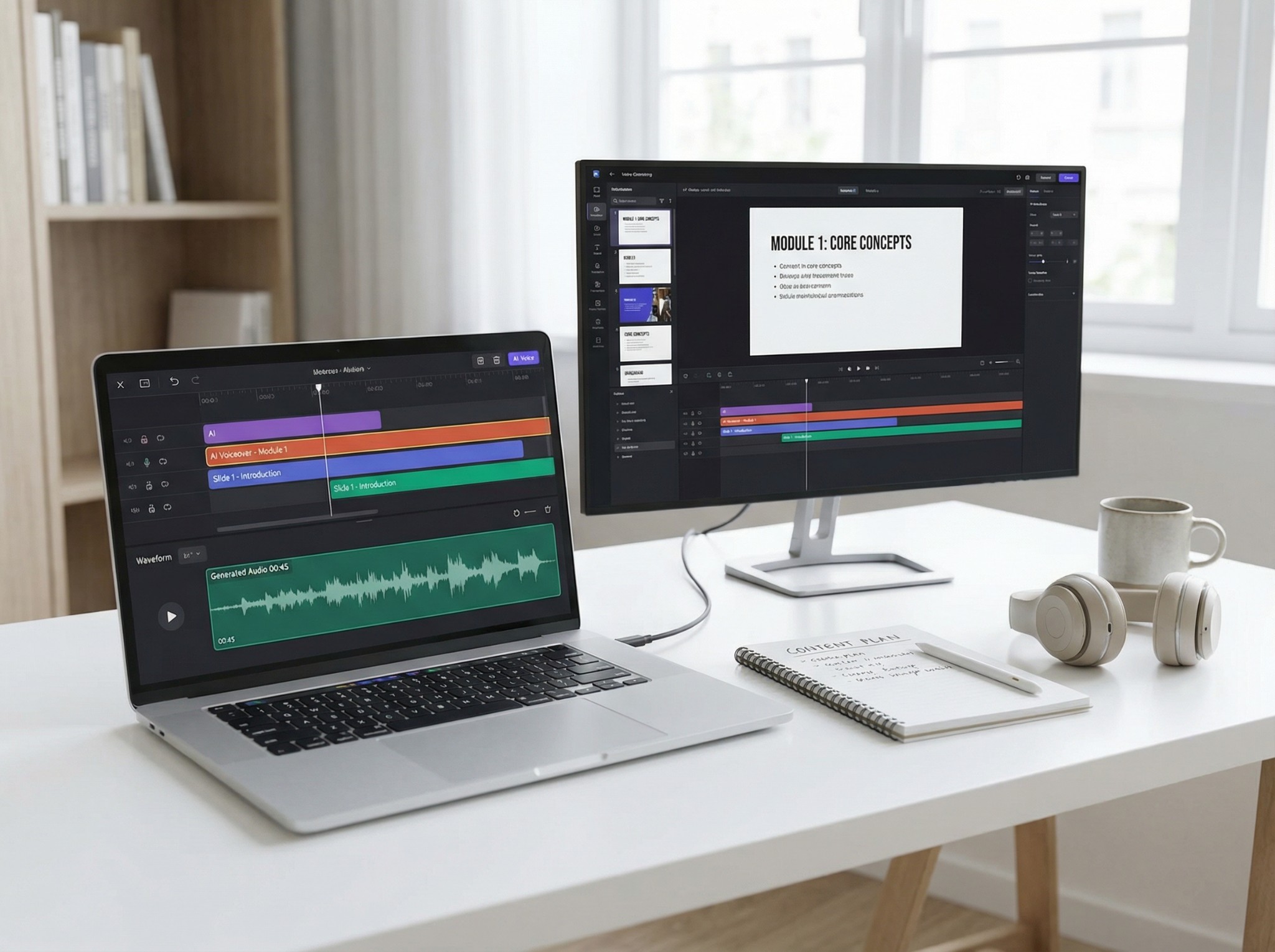
PDFs, reports, study notes, and other long documents are well suited to text-to-speech when you want another way to work through written material. Instead of staying focused on the screen for the entire document, you can listen to the main text and return visually to sections that need closer attention.
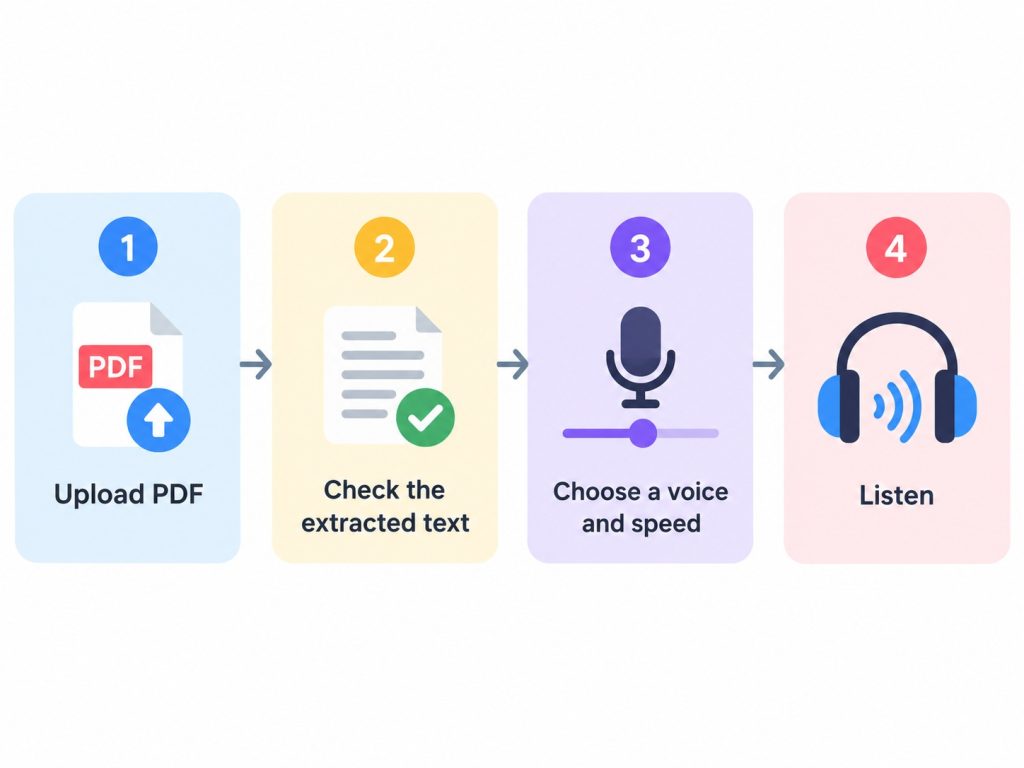
This works well for reports, essays, research papers, manuals, study notes, and other reading-heavy documents. Word files can be handled in a similar way, making it easy to turn longer study or work materials into audio without manually copying the text.
Scanned PDFs can also be turned into audio with OCR. Optical character recognition detects the text contained in scanned pages or images before it is converted into speech, which makes older documents, printed handouts, and image-based study materials much easier to listen to.
For documents with tables, charts, formulas, citations, or complex layouts, listening works especially well alongside the original file. You can use audio for the main prose, pause when you reach something that needs closer inspection, and then continue listening once you are ready.
Best for: PDFs, reports, study notes, essays, research papers, manuals, Word documents, and other long-form reading.
3. Proofread Emails and Documents by Listening
When you read your own writing several times, it becomes easy to see what you intended to write rather than what is actually on the page. Listening to the same text gives you another way to review it and can make awkward wording, repetition, missing words, and unnatural sentence flow easier to notice.
A practical proofreading workflow is:
- Finish the draft. Write and revise the main ideas before starting the listening pass.
- Add the text to TTS. Paste the draft and choose a clear voice and comfortable playback speed.
- Listen while following the text. Pay attention to anything that sounds incomplete, repetitive, overly long, or different from what you expected.
- Make corrections and replay the section. Listening again after an edit helps you hear whether the revised sentence flows naturally.
TTS can be especially useful for spotting repeated words or phrases, missing words, awkward pauses, repetitive sentence structures, and sentences that are difficult to follow in one pass. It works well for both short content, such as emails, and longer drafts that benefit from a separate listening review.
After the listening pass, a quick visual check can confirm details such as names, links, citations, spelling, and formatting. Combining listening with visual review gives you two different ways to catch problems before sending or publishing the final version.
Best for: emails, reports, essays, blog drafts, presentations, proposals, and other written content you want to review before sharing.
4. Read Printed Pages, Screenshots, and Scans With OCR
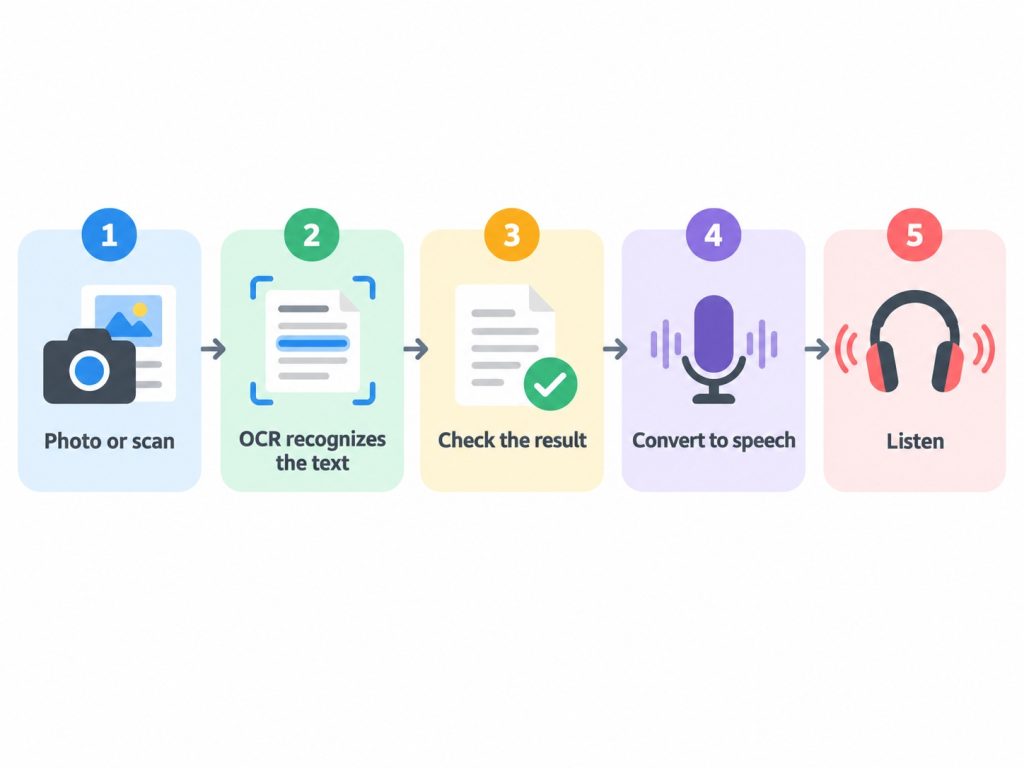
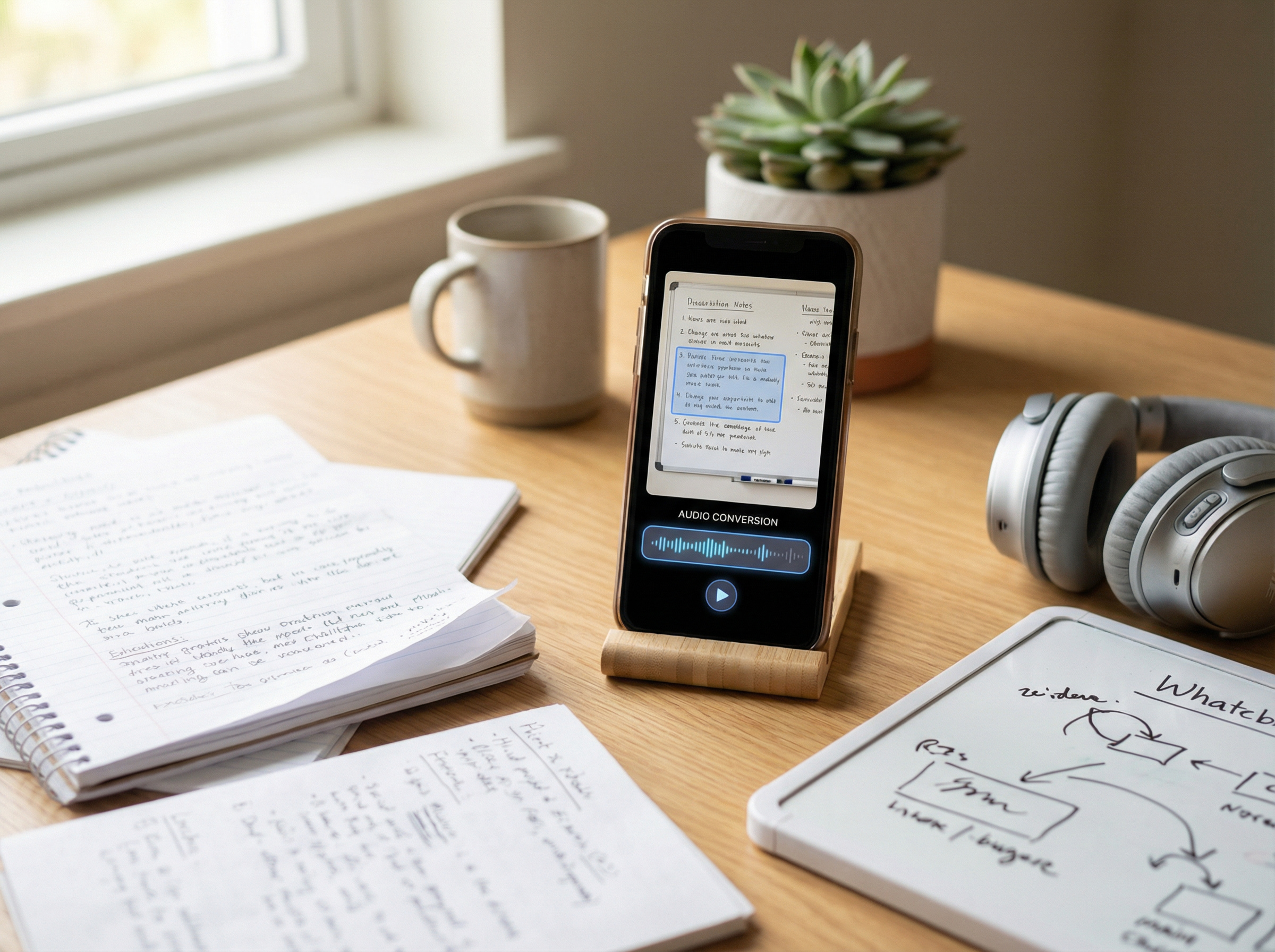
Text-to-speech can also be useful when the content you want to hear is not available as normal editable text. Photos of printed pages, screenshots, scanned handouts, image-based PDFs, and older documents can first be processed with OCR and then converted into speech.
This makes it possible to turn a wide range of image-based material into audio without manually retyping the content.
For the best results, use a clear image with readable text and check a short section before listening to a longer document. It can be useful to confirm:
- names
- dates and numbers
- abbreviations
- headings
- paragraph order
- columns or tables
- unusual symbols
Clear scans and well-lit photos generally make the process smoother, while blurry images, unusual layouts, handwriting, or low contrast may require a little more checking.
When exact details matter, keep the original image available while listening so you can quickly confirm important numbers, names, or technical information. This gives you the convenience of audio while still making it easy to refer back to the source.
Best for: printed pages, screenshots, scanned documents, handouts, older documents, and image-based PDFs.
5. Practice Pronunciation and Listening in Another Language
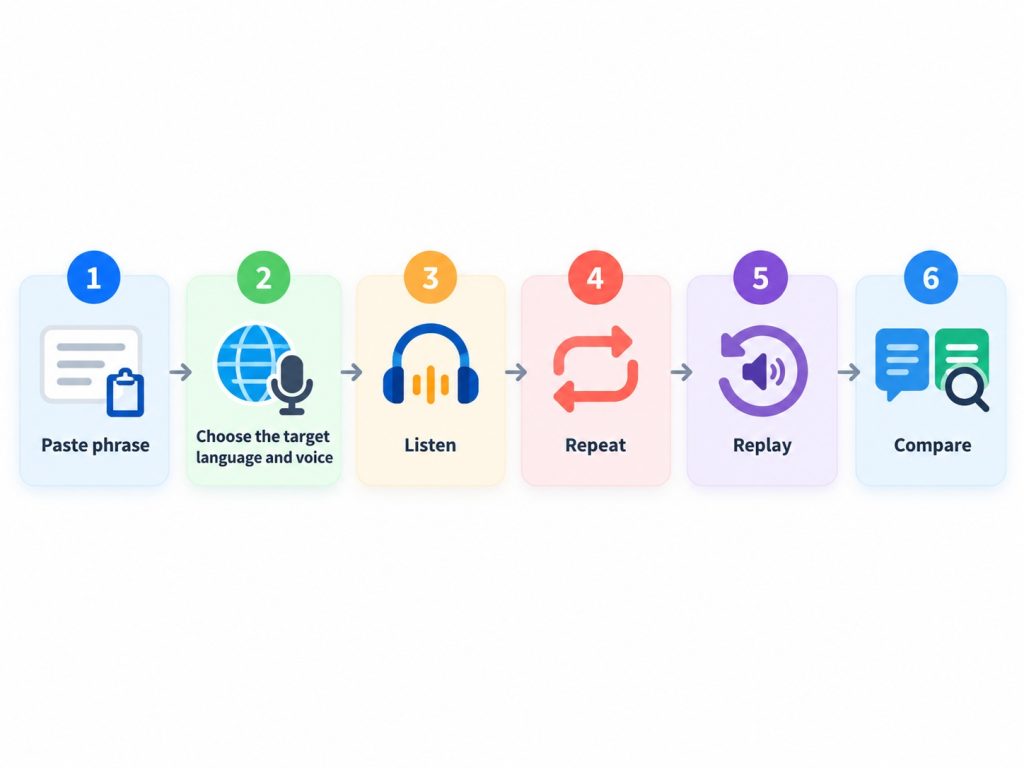
Text-to-speech can help connect written language with spoken language by letting you hear words, phrases, and sentences aloud. Instead of relying only on spelling, you can listen to the text, repeat it, and replay the audio as many times as needed.
This works particularly well for vocabulary, example sentences, short dialogues, presentation preparation, and other language material you want to hear repeatedly. If a phrase is difficult, you can slow the playback while becoming familiar with it and then increase the speed for more natural listening practice.
Listening while following the written text can also help you connect spelling with pronunciation and become more familiar with sentence rhythm, stress, and phrasing. Replaying the same material makes it easy to practice difficult sections without having to search for a new recording each time.
TTS reads the text you provide, so start with the phrase or sentence already written in the language you want to practice. It can provide a convenient spoken reference for listening and repetition, while your own pronunciation can be improved further through speaking practice and feedback.
Best for: vocabulary, short sentences, listening practice, presentation preparation, and pronunciation reference.
Which TTS Workflow Should You Use?
The easiest way to choose a text-to-speech workflow is to start with the format you already have.
| You have | Best TTS workflow | Useful for |
| Web article | Paste the URL, extract the readable text, choose a voice and speed, then listen | News, blogs, research pages |
| PDF or Word document | Upload the document, check the extracted content, choose a voice and speed, then listen | Reports, study notes, essays |
| Email or draft | Paste the text, listen while following along, then revise and replay | Proofreading and editing |
| Screenshot or printed page | Use OCR, check the recognized text, choose a voice, then listen | Scans, handouts, images |
| Foreign-language text | Paste the text, select the matching language and voice, then listen and repeat | Pronunciation and listening practice |
Starting with the source format makes it easier to choose the right workflow from the beginning. Once the content is ready, you can adjust the voice and playback speed to suit the task and decide whether you want to listen on its own or follow along with the original text..
Why TheSpeakr Works Well for Everyday Text-to-Speech
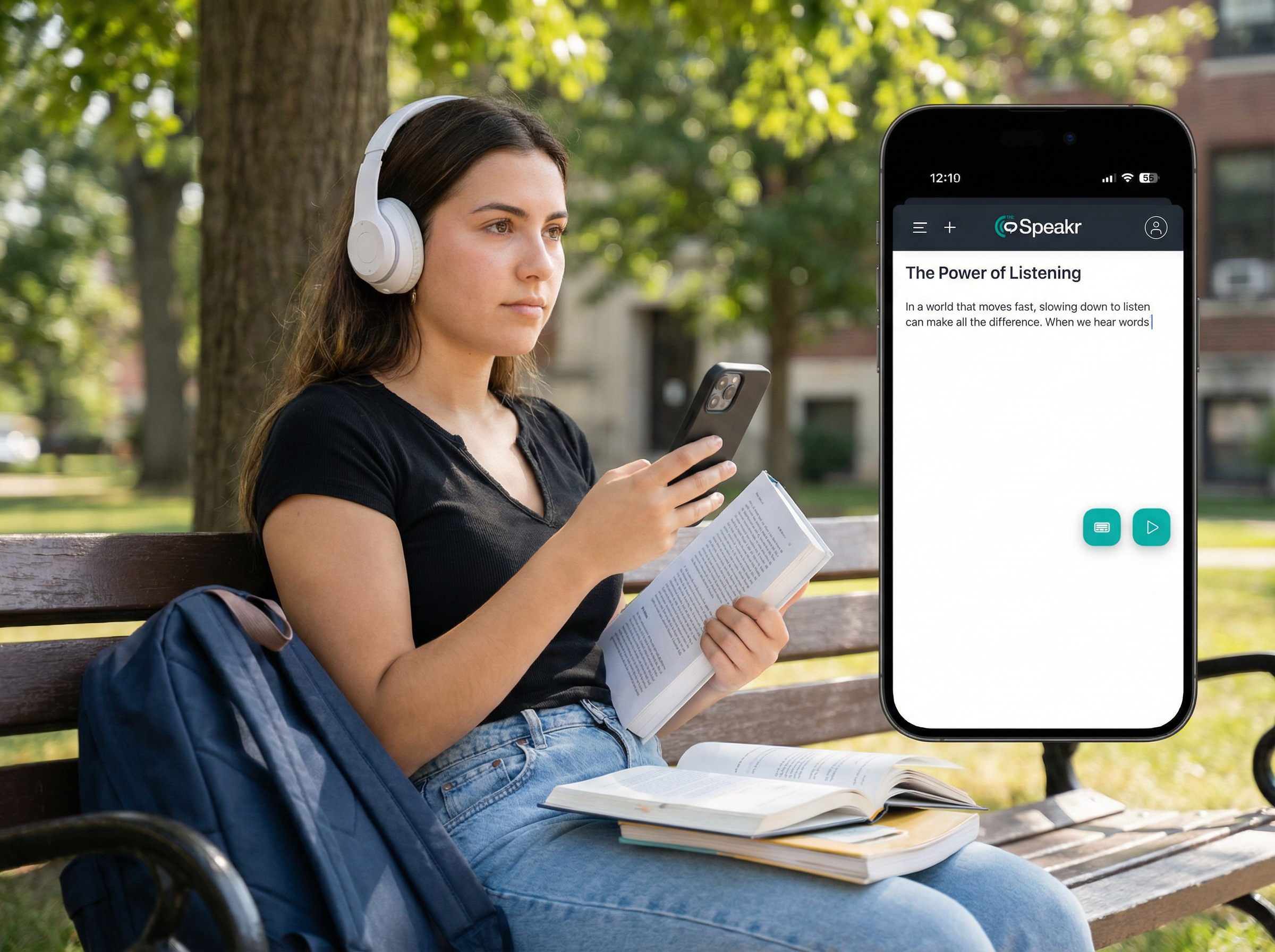
TheSpeakr brings several everyday text-to-speech workflows into one place, making it easy to move from written content to audio without relying on a single input format. You can paste text directly, provide a webpage URL, upload supported documents such as PDFs and Word files, or use OCR with screenshots, photos, and scanned PDFs.
This flexibility makes TheSpeakr useful across different situations. You can listen to an article without manually copying the entire page, turn a long PDF into audio, review a draft by hearing it read aloud, or extract text from an image before listening to it.
TheSpeakr also offers voices across more than 40 languages and lets you adjust the voice and playback speed to suit the material. A slower pace can work well for proofreading or unfamiliar content, while a faster setting may be more convenient when reviewing material you already know.
For longer content, audio can also be downloaded as an MP3, making it easier to continue listening when it suits your routine. Together, these features make TheSpeakr a practical option for reading, studying, proofreading, reviewing documents, and working with everyday text in audio form.
The main advantage is simplicity: instead of using separate tools for webpages, documents, scanned text, and everyday TTS, TheSpeakr provides a single workflow for turning supported written content into audio and adapting the listening experience to the task.
Frequently Asked Questions
How Can I Use Text-to-Speech Every Day?
Start with written content you already use regularly. Articles, work reports, study notes, email drafts, PDFs, screenshots, and foreign-language text can all become practical TTS workflows without requiring you to create a separate listening routine.
For example, you can listen to an article while walking, review a report as audio, proofread an email by hearing it aloud, or use OCR to turn a scanned page into speech.
Can Text-to-Speech Read a Webpage Aloud?
With URL-based reading, you can paste the address of a webpage, extract its readable content, choose a voice and playback speed, and listen instead of reading the entire page on screen.
This works particularly well for articles, blog posts, newsletters, research pages, and other text-heavy webpages.
Can Text-to-Speech Read PDFs?
Text-based PDFs can be uploaded and converted into spoken audio, while scanned or image-based PDFs can be processed with OCR to recognize the text first.
TTS works particularly well with prose-heavy PDFs such as reports, essays, study notes, research papers, and manuals. For documents containing important tables, charts, formulas, or diagrams, you can listen to the main text while keeping the original PDF available for visual reference.
Can Text-to-Speech Help With Proofreading?
Listening to your writing can make repeated or missing words, awkward sentences, unnecessary repetition, and unnatural phrasing easier to notice.
A useful workflow is to listen while following the text, make corrections, and replay revised sections. You can then finish with a quick visual check for details such as spelling, names, links, citations, and formatting.
Is Text-to-Speech Useful for Studying?
Students can use TTS to listen to notes, articles, PDFs, research papers, essays, and other study materials. They can listen on its own or follow the written material at the same time, depending on the task.
TTS can be especially useful for reviewing longer readings, revisiting familiar material, hearing written content aloud, and creating another way to work through study materials. For content with equations, tables, diagrams, or other visual information, listening can be combined with the original document.