How to Have a PDF Read to You: A Step-by-Step Guide
Reading a long PDF on screen is not always the most convenient option. Text-to-speech can turn the written content into spoken audio, giving you another way to work through reports, study materials, research papers, manuals, ebooks, and other documents.
The process is usually straightforward: upload the PDF, let the text be extracted, choose a voice and playback speed, and start listening. If the PDF contains scanned pages or images instead of selectable text, OCR can recognize the text first so it can be converted into speech.
Listening can be especially useful for long, text-heavy documents or when you want to review material without continuously reading from a screen. You can also keep the original PDF open while listening whenever tables, charts, citations, or other visual details need closer attention.
TL;DR: How to Have a PDF Read to You
To have a PDF read aloud, upload the file to a text-to-speech tool that supports PDF documents, choose a voice and playback speed, and start listening. If the PDF is scanned or image-based, OCR may be needed first to recognize the text.
A simple workflow is:
- Upload the PDF.
- Check that the text was extracted correctly.
- Choose a voice and playback speed.
- Start listening.
- Keep the original PDF open when you need to review tables, charts, citations, or other visual details.
This approach works well for reports, research papers, study materials, manuals, ebooks, and other text-heavy PDFs.
How to Have a PDF Read to You With TheSpeakr
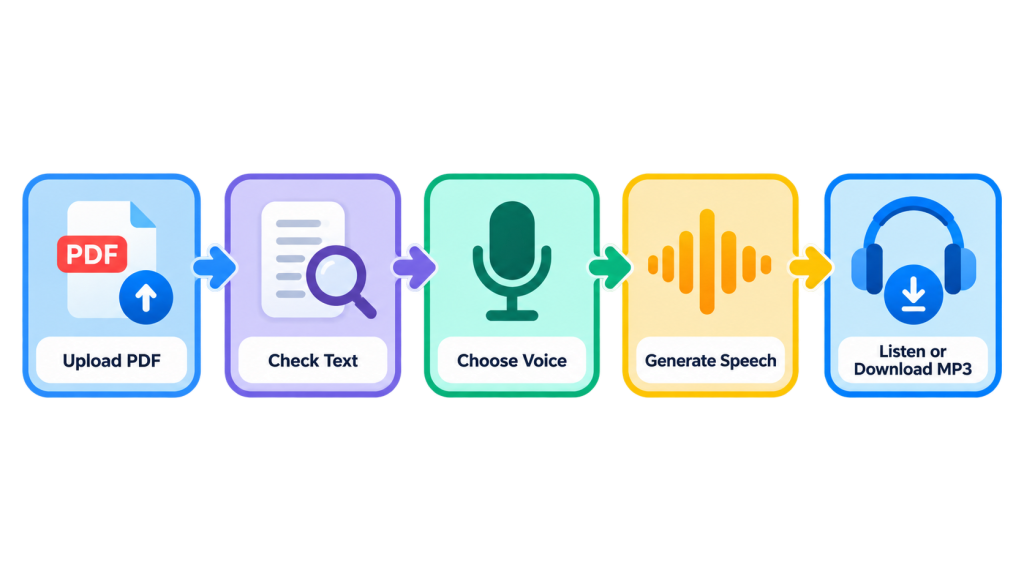
TheSpeakr makes it easy to turn PDFs into spoken audio directly from your browser. You can upload a document, choose a voice and playback settings, listen online, and download the generated audio as an MP3 when needed.
The basic workflow is simple:
Upload the PDF, check the extracted text, choose a voice and speed, generate the audio, then listen or download it.
Step 1: Open TheSpeakr
Open TheSpeakr in your web browser and sign in or create an account. Because the platform works directly in the browser, you can start using its text-to-speech features without installing desktop software.
TheSpeakr is also available as a mobile app, giving you another convenient way to access your content when you prefer listening from a smartphone or tablet.
Once you are in the application, select the document upload option to start working with your PDF.
Step 2: Upload the PDF You Want to Hear
Choose the PDF from your device and upload it to TheSpeakr. Direct PDF support means you can work with longer documents without manually copying text page by page.
This is especially convenient for:
- research papers
- business reports
- manuals
- study materials
- ebooks
- documents exported from Word
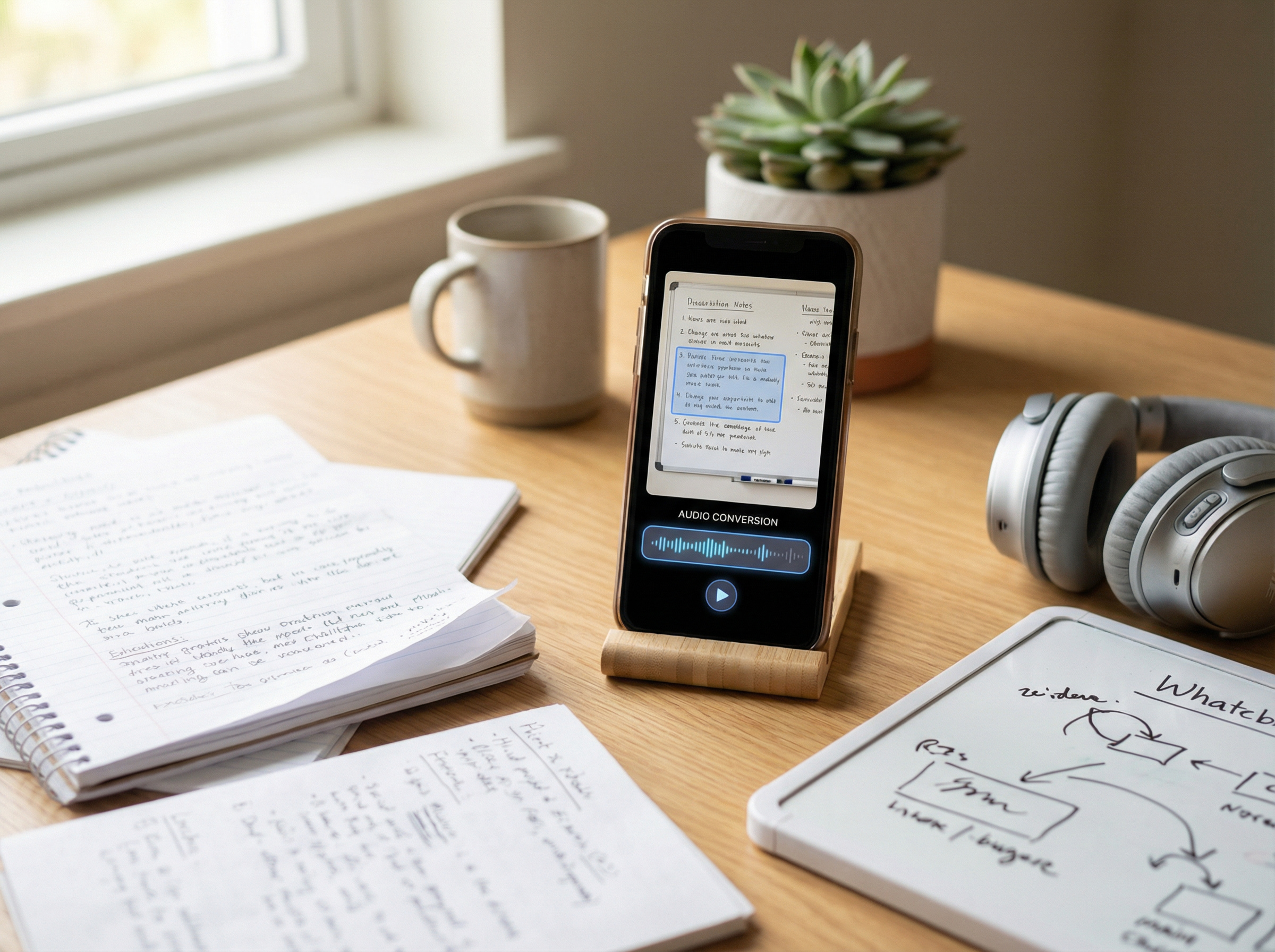
After the upload, TheSpeakr processes the document so its text can be converted into speech. Text-based PDFs can usually be handled directly, while scanned or image-based PDFs can be processed with OCR to recognize the visible text first.
Before listening to a longer document, check the beginning to make sure the content has been extracted as expected. Once everything looks right, you can move on to choosing a voice and adjusting the playback settings..
Step 3: Check the Extracted Text
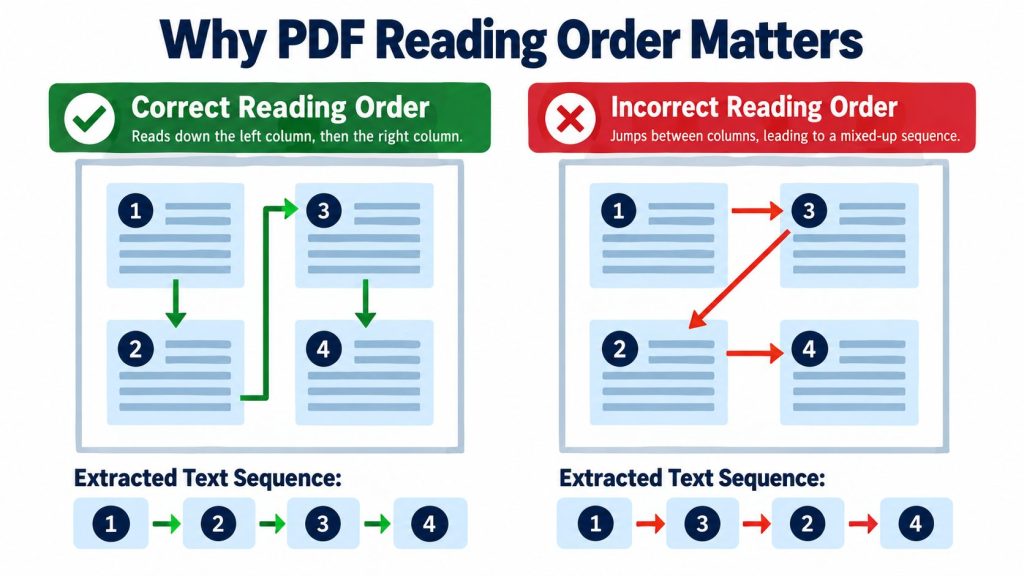
Before listening to a longer PDF, quickly check that the document has been processed as expected. Review the extracted text when available or listen to the beginning of the document to make sure the content is complete and follows the correct reading order.
This is particularly useful for PDFs with multiple columns, footnotes, tables, scanned pages, or complex layouts. A document may look perfectly organized on screen while its underlying text is stored in a different sequence.
Text-based PDFs with a clear text layer generally require little preparation. For scanned or image-based PDFs, TheSpeakr can use OCR to recognize the visible text before converting it into speech.
Step 4: Choose a Voice and Language
Once the PDF is ready, choose a voice that fits both the document and the way you prefer to listen. TheSpeakr offers voices across more than 40 languages, giving you flexibility when working with different types of content.
A clear, neutral voice can work well for reports, research papers, manuals, and study material, while another voice may feel more comfortable for ebooks or narrative content. You can try different options until you find one that is easy to follow over a longer listening session.
Choose a voice that matches the language of the PDF. For an English document, for example, select an English voice and your preferred available voice option. For content written in another supported language, choose the corresponding language before generating the audio.
The language setting determines how the written text is spoken rather than translating the document. If you want to hear translated content, the text should first be translated into the target language and then converted to speech.
Step 5: Adjust the Speaking Speed and Generate the Audio
Before generating the audio, adjust the playback settings to match the document and the way you prefer to listen. A normal speaking pace is a good starting point for most PDFs, while slower playback can make technical material or unfamiliar terminology easier to follow.
For familiar material or a quick review, you can increase the speed and move through the document more efficiently. TheSpeakr also provides additional voice customization options, including pitch and mood settings, giving you more control over how the generated speech sounds.
Once you are happy with the voice and settings, generate the audio and listen to a short section first. This is especially useful for PDFs containing specialized terminology, names, abbreviations, or technical language because you can confirm that the document sounds the way you expect before continuing with a longer listening session.
Step 6: Listen Online or Download the PDF as Audio
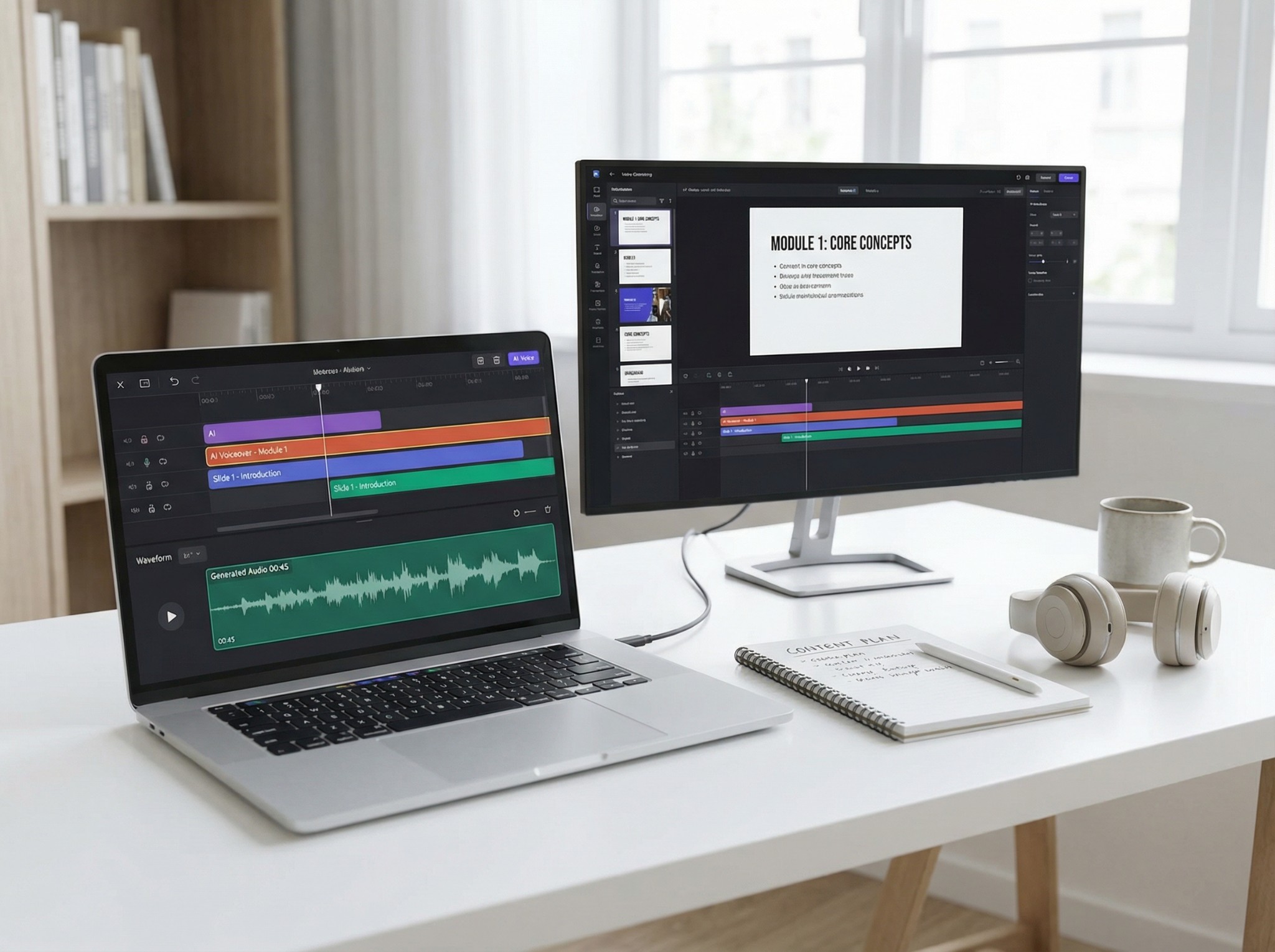
Once the audio is ready, you can listen directly through TheSpeakr’s audio player. This gives you a convenient way to work through reports, research papers, study materials, manuals, ebooks, and other PDFs without continuously reading from the screen.
You can also download the generated audio as an MP3. Saving the PDF as audio makes it easy to return to the material later, listen during a commute or walk, or use your preferred audio player when that better fits your routine.
For longer documents, you can combine both approaches: listen online while reviewing important sections of the original PDF, then download the audio when you want to continue listening later.
What Types of PDFs Can Be Read Aloud?
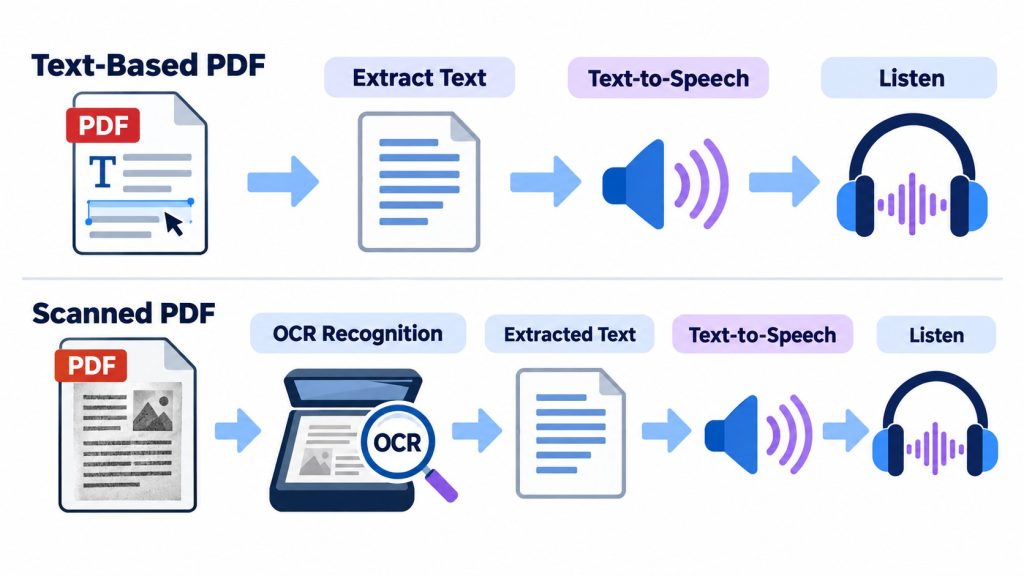
Most common PDF types can be turned into spoken audio, but the workflow depends on how the document was created. Some PDFs contain selectable digital text, while others are made from scanned pages or images that need OCR before the text can be read aloud.
| PDF type | Description | What to expect |
| Text-based PDF | Contains digitally created, selectable text | Text can usually be extracted directly and converted to speech |
| Scanned PDF | Contains images of printed pages | OCR can recognize the text before it is converted to speech |
| Mixed PDF | Combines digital text and scanned pages | Some pages may be extracted directly, while others may need OCR |
| Multi-column PDF | Uses columns, footnotes, sidebars, or complex layouts | The reading order is worth checking before listening to the full document |
| Image-heavy PDF | Contains charts, diagrams, screenshots, or text within images | OCR can recognize visible text, while important visual information can be reviewed in the original PDF |
A PDF exported from Word or another document editor will usually contain a usable text layer and can often be processed with very little preparation. A scanned handout, photographed textbook page, or older digitized document may instead need OCR to recognize the words first.
This means both standard and scanned PDFs can work well with text-to-speech. For the best listening experience, check the beginning of the document after processing and keep the original PDF available whenever tables, charts, diagrams, or other visual elements add important context.
How to Listen to a PDF on Your Phone or Computer
TheSpeakr can be used both in a web browser and through mobile apps, making it easy to choose the setup that best fits where and how you want to listen. You can work with a PDF on your computer when you need the original document nearby or switch to a phone when listening on the go is more convenient.
Listen to PDFs on a Windows PC or Mac
On a desktop or laptop, you can open TheSpeakr directly in your browser without installing separate desktop software. Upload the PDF, choose a voice and playback speed, generate the audio, and start listening.
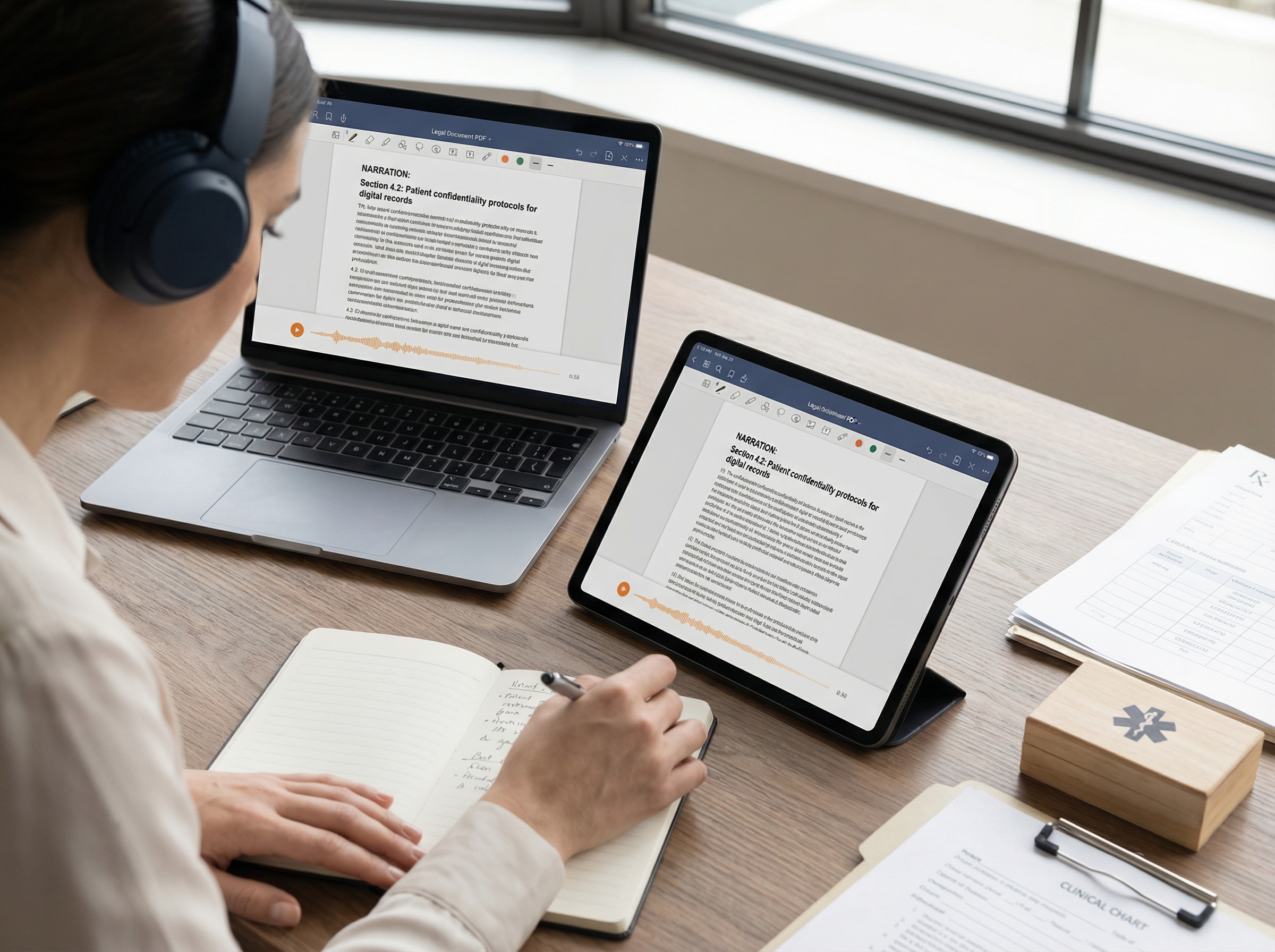
This setup works particularly well for research papers, reports, study materials, and other documents that you may want to view while listening. Keeping the original PDF open alongside the audio makes it easy to move between narration and visual elements such as tables, figures, citations, or diagrams.
Listen to PDFs on iPhone or Android
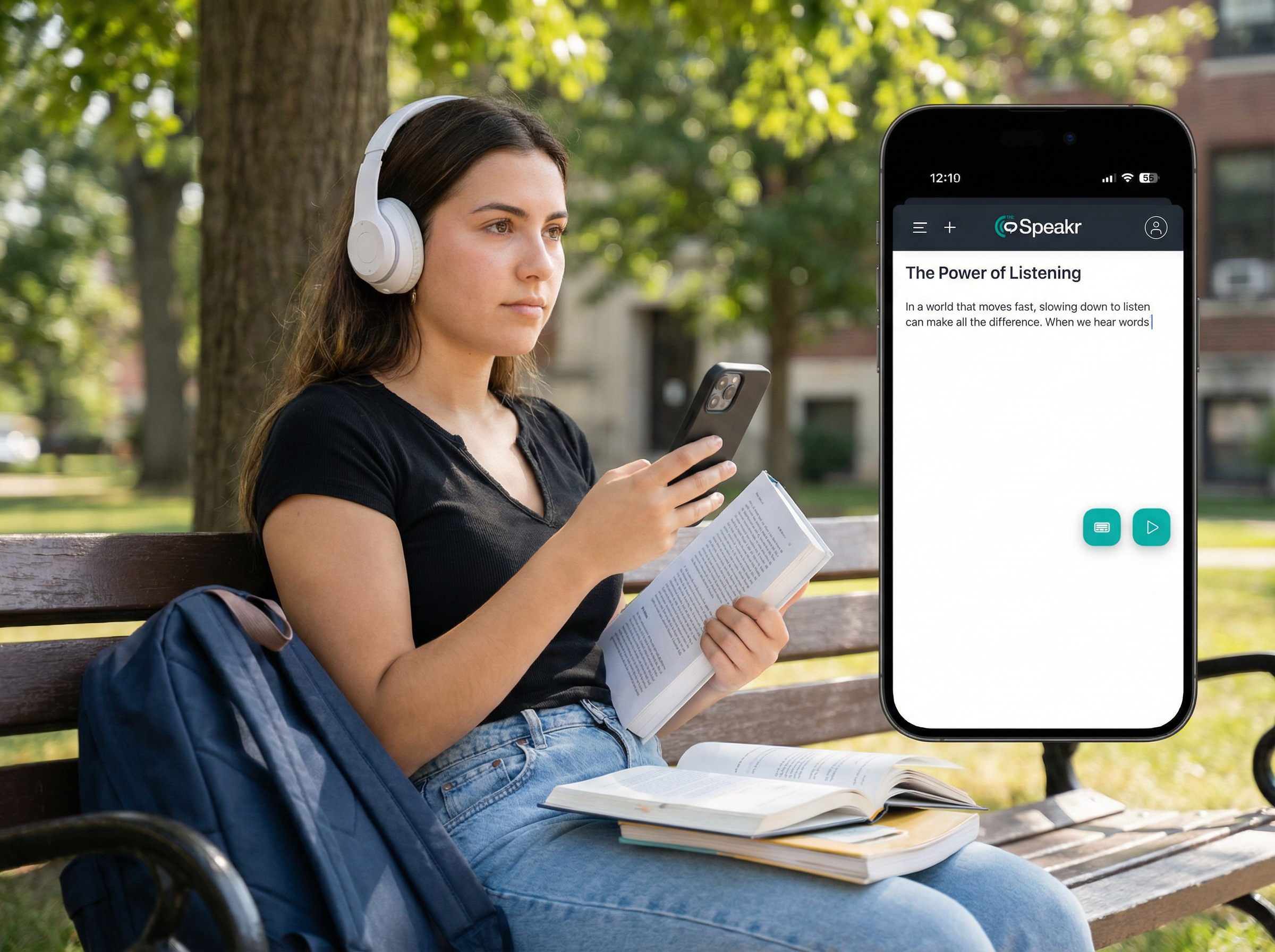
TheSpeakr is also available as a mobile app for iOS and Android, giving you a convenient way to access text-to-speech from your phone. This can be especially useful when you want to continue with a document away from your computer or prefer listening during a commute, walk, or other part of your daily routine.
For longer material, you can also download generated audio as an MP3 and listen through a compatible audio player. This gives you more flexibility to choose when and where you work through longer PDFs without needing to stay in front of a screen.
Why Isn’t My PDF Reading Aloud Correctly?
Even with a PDF-compatible text-to-speech platform, some documents may require extra preparation.
When a PDF does not produce the expected narration, the problem often relates to text recognition, document structure, file restrictions, or playback settings.
| Problem | Possible reason | Recommended action |
| PDF has no readable text | It contains scanned images | Use OCR to recognize the text |
| Some words are incorrect | OCR misidentified characters | Compare extracted text with the original |
| Paragraphs are read out of order | Multi-column or complex PDF layout | Check the extracted sequence |
| Narration has no sound | Playback or audio output issue | Check device volume and playback settings |
| Some pages are missing | Mixed digital and scanned pages | Examine individual pages and apply OCR where needed |
| Audio generation fails | File processing issue or usage restriction | Check file compatibility, size, and account limits |
| MP3 cannot be downloaded | Export availability or account restriction | Verify the current plan and export options |
Frequently Asked Questions
Can I Have an Entire PDF Read to Me?
A PDF-compatible text-to-speech tool can process longer documents and convert their readable text into spoken audio. This works particularly well for reports, research papers, study materials, manuals, ebooks, and other text-heavy PDFs.
For longer documents, it is useful to check the beginning after processing to make sure the text has been extracted correctly before continuing with the full listening session.
Can I Change the Voice Reading My PDF?
TheSpeakr offers multiple voice options across more than 40 languages and allows you to adjust playback settings such as speaking speed. This makes it easy to choose a voice and pace that fit both the document and your listening preferences.
A slower pace can work well for technical or unfamiliar material, while faster playback can be useful when reviewing content you already know.
Can I Download a PDF as an MP3?
TheSpeakr can convert the text from a PDF into spoken audio and lets you download the generated narration as an MP3.
This is useful when you want to listen later, continue with a long document away from your computer, or use your preferred compatible audio player.
Do I Need to Copy the Text From My PDF?
TheSpeakr supports direct PDF uploads, so you can add the document without manually copying each paragraph into the text-to-speech tool.
If the PDF contains scanned or image-based pages, OCR can recognize the visible text before it is converted into speech. This makes the same workflow useful for both standard and scanned PDFs.
Can I Listen to a PDF While Doing Other Activities?
Turning a PDF into audio gives you more flexibility to work through suitable documents while walking, commuting, exercising, or doing routine activities.
For reports, research papers, study materials, and other documents containing important tables, figures, formulas, or precise details, you can combine listening with the original PDF. This lets you enjoy the convenience of audio while returning to the visual document whenever additional context is useful.