How to Scan a Book to Audio: A Step-by-Step Guide
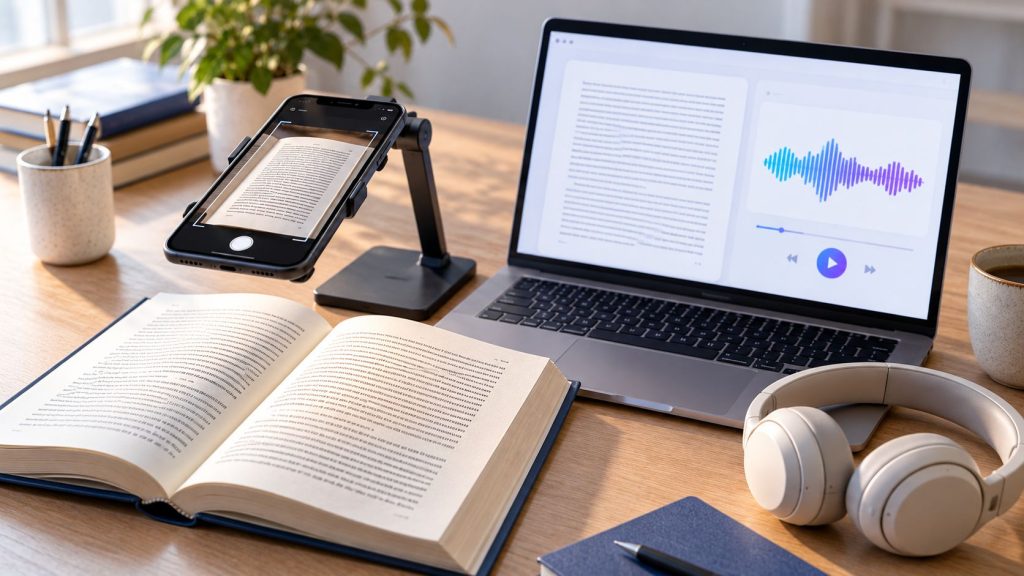
Printed books are useful, but they are not always convenient to read from page to page. Turning a book into audio can make longer reading material easier to work through when you want to listen instead of staying focused on the page or screen.
This can be especially useful for textbooks, study materials, older books, printed reports, and other content that is not already available as an audiobook. Instead of retyping the text manually, you can scan or photograph the pages, use optical character recognition (OCR) to extract the words, and then convert the recognized text into spoken audio.
The process can be as simple as using a smartphone to capture a few pages, but longer chapters and entire books require more attention to image quality, page order, OCR accuracy, and document structure. The better the source images and recognized text, the more natural and useful the final audio will be.
Quick Answer: How to Turn a Book Into Audio
To scan a book to audio, photograph or scan the pages, use OCR to recognize the printed text, review the extracted text for errors, and convert it into speech with a text-to-speech tool.
A typical workflow is:
- Photograph or scan the book pages.
- Make sure the images are clear, straight, and easy to read.
- Use OCR to extract the text.
- Check the recognized text and page order.
- Choose a voice and playback speed.
- Generate the audio and start listening.
- Download the audio as an MP3 if you want to listen later.
For a few pages, a smartphone may be enough. For longer chapters or entire books, consistent image quality, correct page order, and careful OCR review become much more important.
How to Scan a Book to Audio in 7 Steps
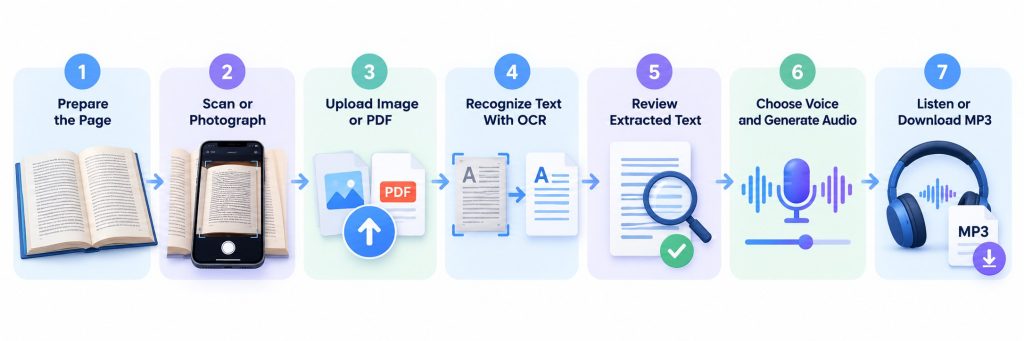
The process is straightforward: capture the book pages, use OCR to recognize the printed text, review the result, convert the text into speech, and then listen or download the generated audio.
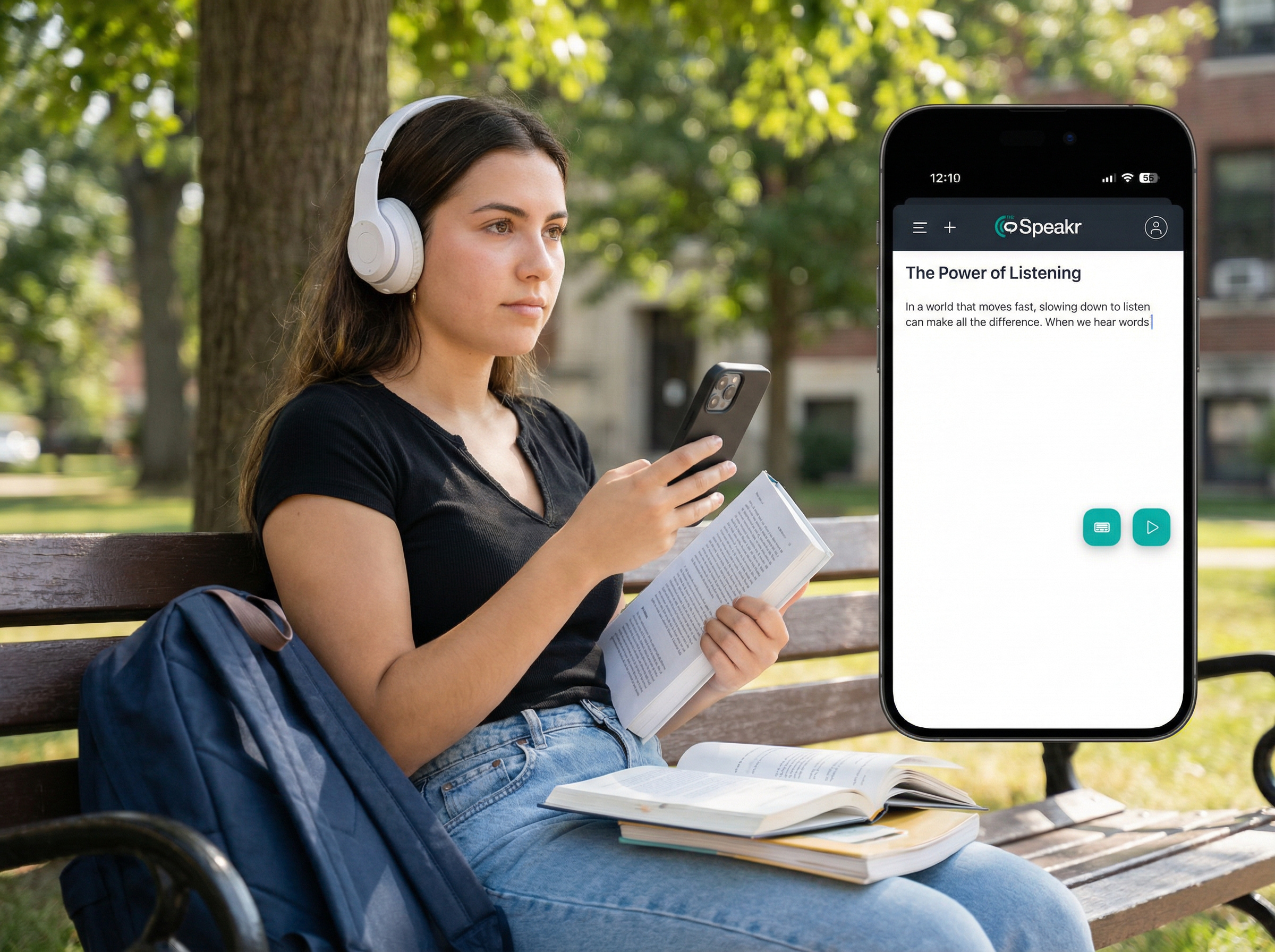
The following steps show how to do this using a smartphone and TheSpeakr.
Step 1: Prepare the Book Page
Open the book to the page you want to convert and place it on a stable, well-lit surface. Make sure the text is clearly visible, especially near the spine, where curved pages can distort letters and reduce OCR accuracy.
If the book is tightly bound, old, or fragile, do not force it completely flat. Instead, gently hold or support the page and adjust the camera position until the text is as clear and evenly visible as possible.
For your first attempt, choose a page with standard paragraphs rather than tables, illustrations, or complex layouts. A simple page makes it easier to check whether the image capture, OCR, and speech output are working as expected.
Step 2: Take a Clear Photo or Scan
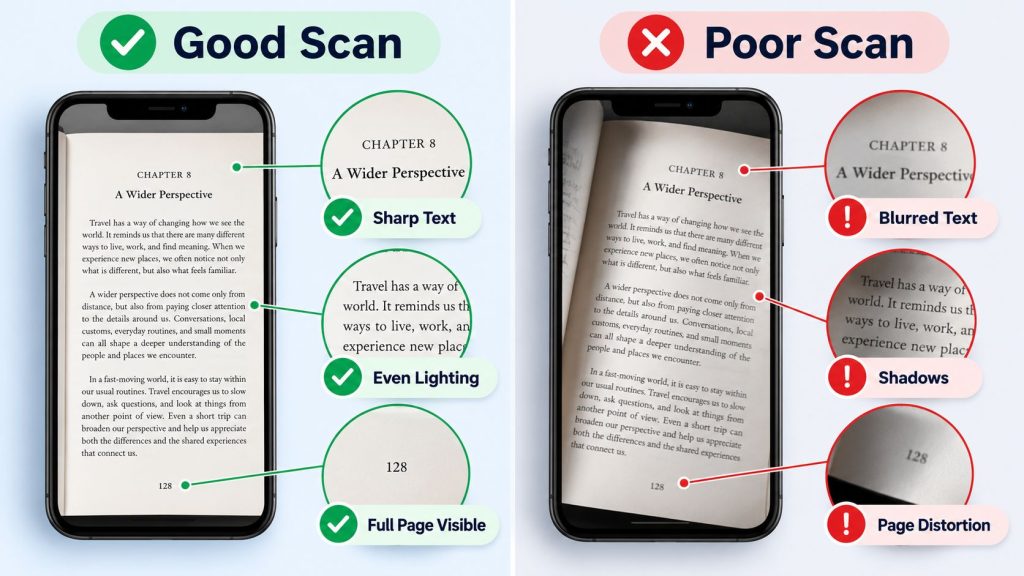
Position your smartphone directly above the page and keep the camera as parallel to the paper as possible. Make sure the text is in focus and the full reading area is visible in the image.
For most books, capturing one page per image is the easiest approach. Photographing two facing pages at once can introduce shadows, curved text near the spine, and reading-order problems that make OCR less reliable. Check each image before moving to the next page. If the text is blurry, cropped, tilted, or covered by shadows, retake the photo while you still have the page in place.
You can use your phone’s regular camera or a document-scanning app that saves the page as an image or PDF. The most important factor is that the text remains sharp, readable, and correctly oriented before you move on to OCR.
Step 3: Upload the Scanned Page to TheSpeakr
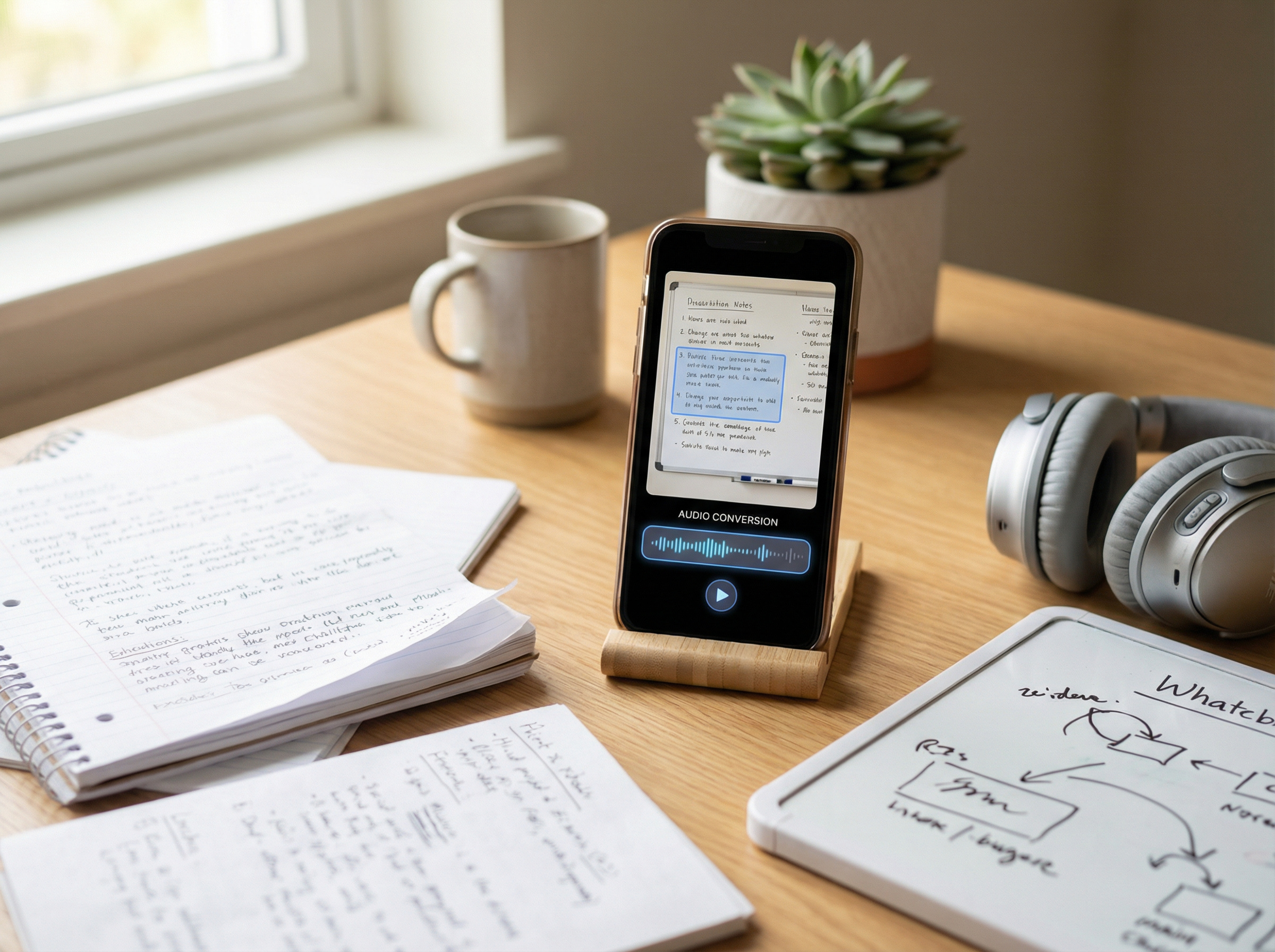
Once you have a clear image or scanned document, open TheSpeakr in your browser or mobile app and upload the file.
TheSpeakr supports OCR-based processing for photos, screenshots, and scanned PDFs, so you can work directly with image-based book pages without manually retyping the text.
If you have already scanned several pages into a PDF, you can upload that document instead of processing each page separately. For your first attempt, it is still a good idea to start with a small sample so you can quickly check the OCR result before moving on to a full chapter.
Step 4: Let OCR Recognize the Printed Text
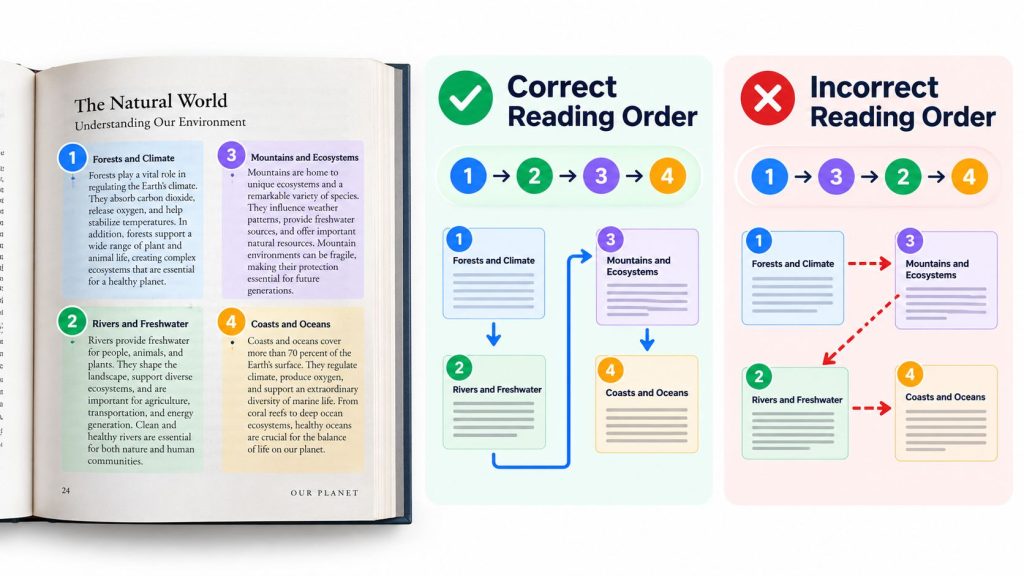
After the file is uploaded, OCR detects the printed words and converts them into machine-readable text that can then be used for speech generation.
This recognition step is what makes it possible to turn a photographed or scanned book page into audio. The text first needs to be identified correctly before it can be read aloud.
Clear, high-contrast pages usually produce the best results. Faded printing, curved text near the spine, handwritten notes, shadows, or unusual layouts can make recognition more difficult.
If the page includes multiple columns, tables, captions, or illustrations, check the extracted text and reading order before generating the audio. Individual words may be recognized correctly even when the original layout causes them to appear in the wrong sequence.
Step 5: Check the Recognized Text
Before converting a longer section into audio, check that the recognized text matches the original book page. Pay particular attention to names, numbers, headings, punctuation, and words near the spine, where curved pages can make OCR less accurate.
Compare the recognized text with the original page and correct any obvious errors before generating the final audio. If a section is missing or badly distorted, retaking the photo or creating a clearer scan will usually give you a better result than continuing with inaccurate text.
For longer chapters, checking a few pages first can help you identify recurring problems with image quality, page order, or text recognition before processing the rest of the book.
Step 6: Choose a Voice and Generate the Audio
Once the text is ready, choose a voice that matches the language of the book and adjust the speaking speed to suit the material. TheSpeakr offers voices across more than 40 languages and lets you customize the playback speed.
A comfortable, natural pace can work well for novels and general reading. For textbooks, technical material, or unfamiliar terminology, slower playback can make the content easier to follow.
Generate the audio and listen to a short section before continuing with more pages. Check that paragraphs are read in the correct order and that important terms sound as expected. If you hear missing, incorrect, or scrambled words, check the recognized text and original scan first. Changing the voice or playback speed will not correct errors introduced during OCR.
Step 7: Listen or Download the MP3
Once the audio is ready, you can listen directly in TheSpeakr or download the generated narration as an MP3 for later use.
For longer books, saving separate audio files by chapter can make the content easier to organize and revisit. For example, you could use a simple filename such as Book_Title_Chapter_03.mp3 so each recording is easy to identify.
Keeping chapters separate also makes it easier to return to a specific section, continue listening from where you stopped, or regenerate only one part if you later notice an OCR or reading-order issue.Turn your first scanned book page into audio with TheSpeakr.
What You Need to Scan a Book Into Audio
You only need a few basic things to turn printed book pages into spoken audio. The process combines three main stages: capturing the page, recognizing the text, and converting that text into speech.
| What you need | What it does | Practical option |
| Smartphone camera or document scanner | Captures clear images of printed book pages | iPhone, Android phone, or document scanner |
| OCR technology | Recognizes text in the captured pages and converts it into digital text | An OCR-enabled text-to-speech tool |
| Text-to-speech software | Converts the recognized text into spoken audio | A TTS tool that supports OCR-based content |
| Optional phone stand or additional lighting | Helps keep pages steady, sharp, and evenly lit | Phone mount, tripod, or desk lamp |
OCR and text-to-speech perform different tasks. OCR identifies the written words inside a photograph or scanned page, while TTS takes the recognized text and converts it into spoken audio.
For your first attempt, start with a single page that has clear printed text. Testing a small sample lets you check image quality, OCR accuracy, reading order, and audio output before scanning an entire chapter or book.
How to Scan Book Pages on iPhone or Android
You can scan book pages with either an iPhone or Android phone without buying a dedicated book scanner. A smartphone camera and a document-scanning app are enough for many books, textbooks, handouts, and other printed materials.
The most important part is capturing pages that are sharp, straight, well lit, and in the correct order. Once the pages are saved as images or a PDF, they can be processed with OCR and converted into spoken audio.
How to Scan a Book on iPhone
On an iPhone, you can scan book pages directly with Apple’s Notes app. Open or create a note, select the attachment option, choose Scan Documents, and position the page within the camera view.
Capture the page and adjust the detected boundaries if necessary. You can continue adding pages to the same scan and save them together when finished.
The Files app also includes a document-scanning option if you prefer to save the scanned document directly to a chosen location. Apple’s official iPhone scanning instructions explain both methods.
Before moving on to OCR, quickly review the pages for blur, shadows, cropped text, and distortion near the book’s spine.
How to Scan a Book on Android
On Android, Google Drive provides a built-in document-scanning feature. Open the Drive app, select the camera option, and capture the book page.
You can crop and rotate the scan, adjust its appearance, and add additional pages before saving the finished document. Google Drive supports saving scans as PDF or JPG files.
Google’s document-scanning instructions explain the available capture and editing options.
Whichever phone you use, review the scanned pages before converting them into speech. Clear images, complete text, and correct page order reduce the amount of OCR correction needed later.
Photo, Scanned PDF, or Digital Book: Which Format Should You Use?
The best workflow depends on the format you already have. Printed pages and image-based files usually need OCR, while searchable PDFs and editable digital text can often be converted to speech more directly.
| Starting format | What it contains | Recommended workflow |
| Printed book | Physical pages | Photograph or scan the pages, use OCR to recognize the text, then convert it to speech |
| Photos of book pages | Images containing printed text | Upload the images, extract the text with OCR, then generate the audio |
| Image-only scanned PDF | Scanned page images without machine-readable text | Upload the PDF, use OCR to recognize the text, then convert it to speech |
| Searchable PDF | Machine-readable text, sometimes combined with page images | Upload the PDF, extract the available text, then generate the audio |
| Editable digital text | Text that can already be selected and copied | Paste or import the text directly into the text-to-speech tool |
If you already have a searchable PDF, there is usually no need to scan the book again. Try selecting and copying a short passage first. If the text is available normally, you can usually move directly to text extraction and speech generation.
Selectable text does not always guarantee perfect audio, however. Multi-column pages, footnotes, sidebars, and complex PDF structures can still affect reading order, so it is worth checking a short section before converting a full chapter or book.
How Much Does It Cost to Turn a Book Into Audio?
The cost of converting a book into audio depends mainly on how much text you want to process and the character allowance included with your text-to-speech plan.
TheSpeakr’s published image-to-speech information currently lists a free allowance of 10,000 characters and a Plus plan with 200,000 characters for $7.99.
How far that allowance goes depends on the book. Page size, font size, margins, illustrations, and paragraph density can all affect the amount of text on each page.
For illustration, if a typical text-heavy page contains about 1,500 to 2,000 characters, the approximate coverage would look like this:
| Amount of content | Estimated characters | Compared with 200,000 characters |
| 1 page | 1,500 to 2,000 | Small portion |
| 20-page chapter | 30,000 to 40,000 | Easily within the allowance |
| 100 pages | 150,000 to 200,000 | Around one allowance |
| 300-page book | 450,000 to 600,000 | Requires substantially more |
Using these assumptions, 200,000 characters could cover roughly 100 to 133 text-heavy pages. This is only an estimate, since real books vary considerably in how much text appears on each page.
For a more accurate estimate, scan several representative pages, check how many characters the recognized text contains, and calculate an average for the rest of the book. This gives you a much better indication of how much text-to-speech usage you will need than relying on page count alone.
Because subscription prices and usage allowances can change, check the current plan details before processing a full book.
Final Thoughts
Scanning a book into audio can make printed material much easier to work with when an audiobook or digital edition is not available. With a clear page image, OCR, and text-to-speech, you can turn books, textbooks, study materials, and other printed content into spoken audio without retyping the text manually.
For longer books, the best approach is to work in manageable sections. Start with a few pages, check the OCR accuracy and reading order, and then continue chapter by chapter once the workflow is producing reliable results.
Good image quality and a quick review of the recognized text make the biggest difference to the final listening experience. Once the content is ready, you can generate the audio, choose a comfortable voice and speed, and save the result for later listening.
To get started, try TheSpeakr’s OCR-to-speech tool with a single scanned or photographed book page.
Frequently Asked Questions
Can I Scan a Book and Have It Read to Me?
You can photograph or scan printed book pages, use OCR to recognize the text, and then convert the extracted text into spoken audio. This works well for novels, textbooks, study materials, manuals, and other printed content. Clear page images and correct reading order help produce better results.
Can I Scan a Book With My Phone Instead of a Scanner?
A smartphone camera can capture clear images of most ordinary printed pages, so you do not necessarily need a dedicated document or book scanner. For better OCR results, keep the page well lit, position the camera directly above it, and make sure the text is sharp and fully visible.
Do I Need OCR to Listen to a Scanned Book?
Usually, yes. A scanned book often contains images of printed pages rather than machine-readable text, so OCR is needed to recognize the words before text-to-speech can read them aloud.
If your PDF already contains selectable digital text, you can usually skip OCR and convert the available text directly into speech.
Can I Scan an Entire Book at Once?
You can process longer scanned documents, but working chapter by chapter is often more practical. Smaller sections are easier to check for OCR errors, reading-order problems, and missing pages.
Separating a book into chapters also makes the resulting audio easier to organize, replay, and regenerate if one section needs correction.
How Long Does It Take to Scan a Book Into Audio?
The time required depends on the number of pages, how quickly they can be captured, the quality of the scans, and how much OCR correction is needed.
A useful approach is to process a few representative pages first. This gives you a better idea of the workflow before you begin scanning an entire chapter or book.
Can Text-to-Speech Read Textbooks With Tables and Images?
Text-to-speech can read recognized text from many textbook pages, including paragraphs, headings, definitions, and other written content.
Tables, diagrams, formulas, charts, and illustrations often contain information that is easier to understand visually, so keep the original textbook available when those elements are important.