Image to Speech: How to Convert Pictures Into Spoken Audio
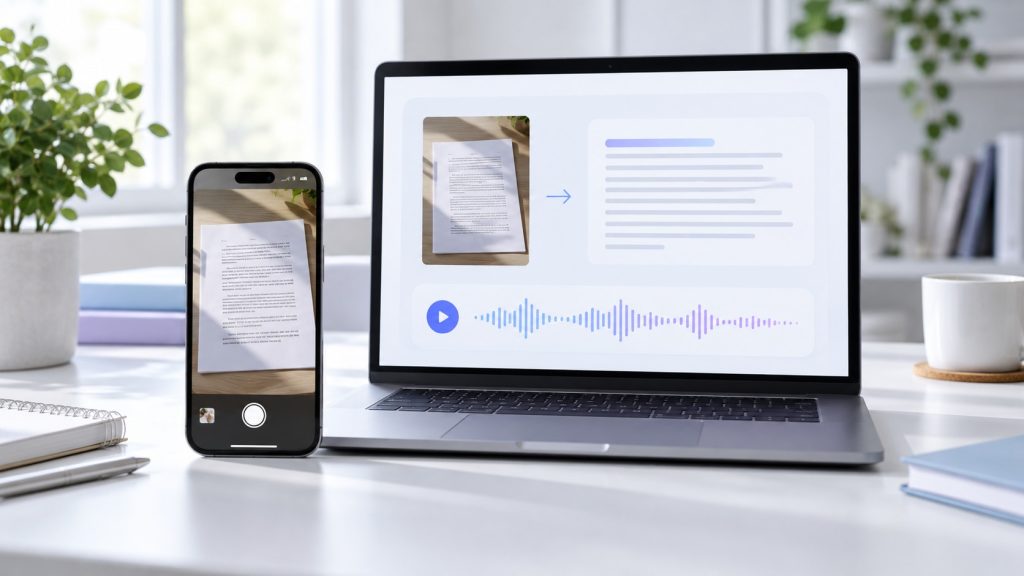
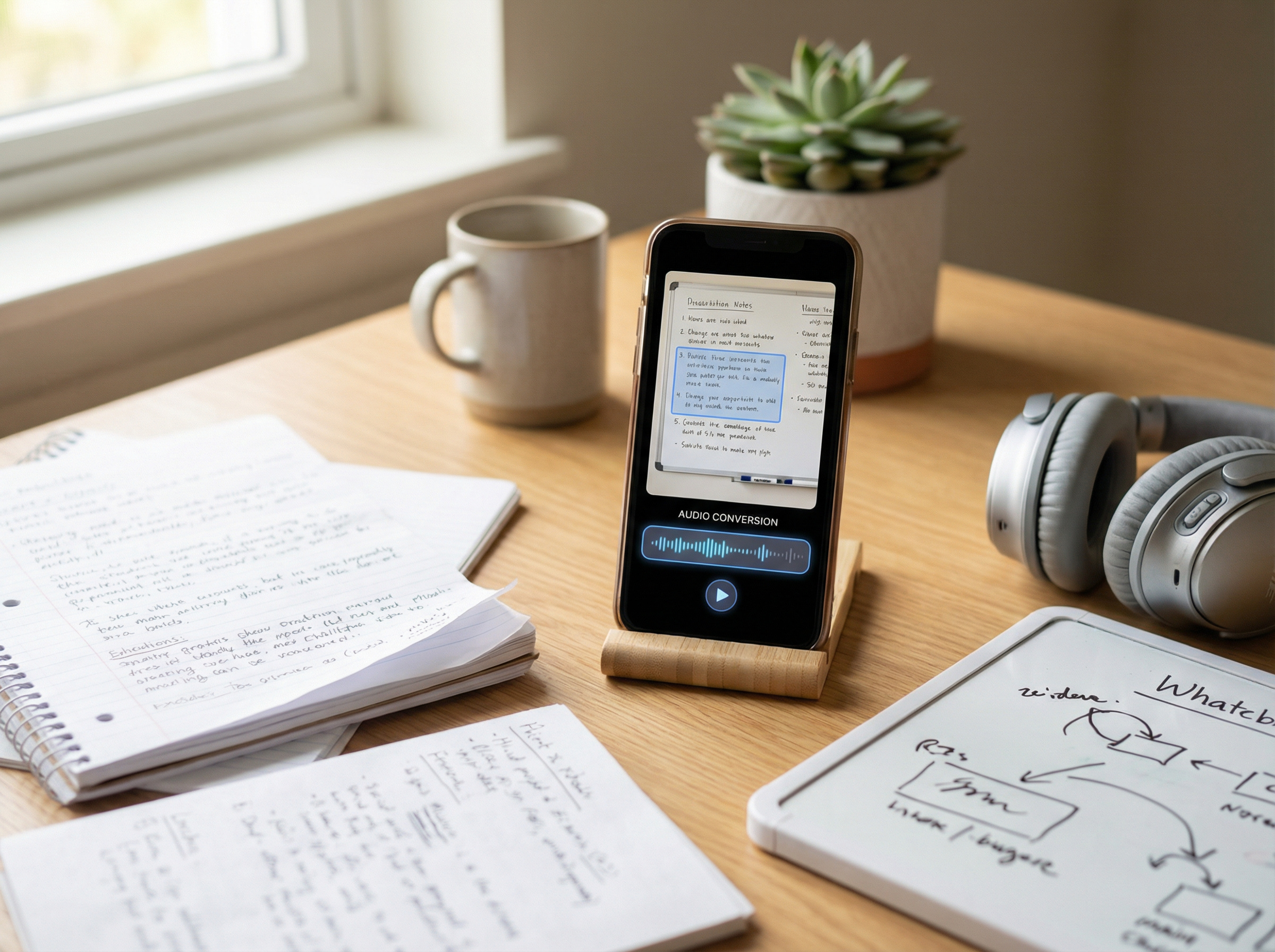
Image to speech turns written words in a picture into spoken audio. The process usually combines optical character recognition (OCR), which detects and extracts visible text from an image, with text-to-speech technology that reads the recognized text aloud.
A typical workflow is simple: upload a photo, screenshot, scanned page, or image-based document, check that the text was recognized correctly, choose a voice and playback speed, and start listening. You can also download the generated audio when you want to listen later.
This is especially useful when text is available only as an image and you do not want to retype it manually. Printed pages, screenshots, scanned documents, and photographed text can all be converted into audio, making written content easier to access on a phone or computer.
Quick Answer: How to Turn an Image Into Speech
To convert an image into spoken audio, upload a photo, screenshot, scanned page, or image-based document to a tool that supports OCR and text-to-speech. OCR first recognizes the visible text, then text-to-speech converts it into audio. Check the extracted text for errors, choose a voice and playback speed, and start listening or download the generated audio for later.
How to Convert an Image to Speech With TheSpeakr
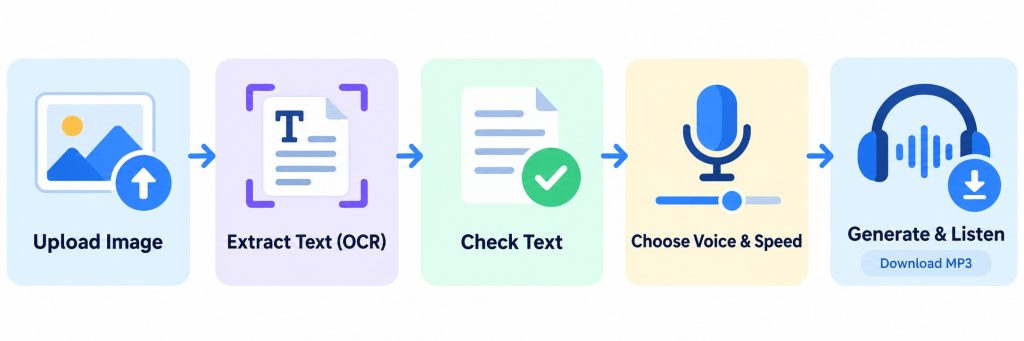
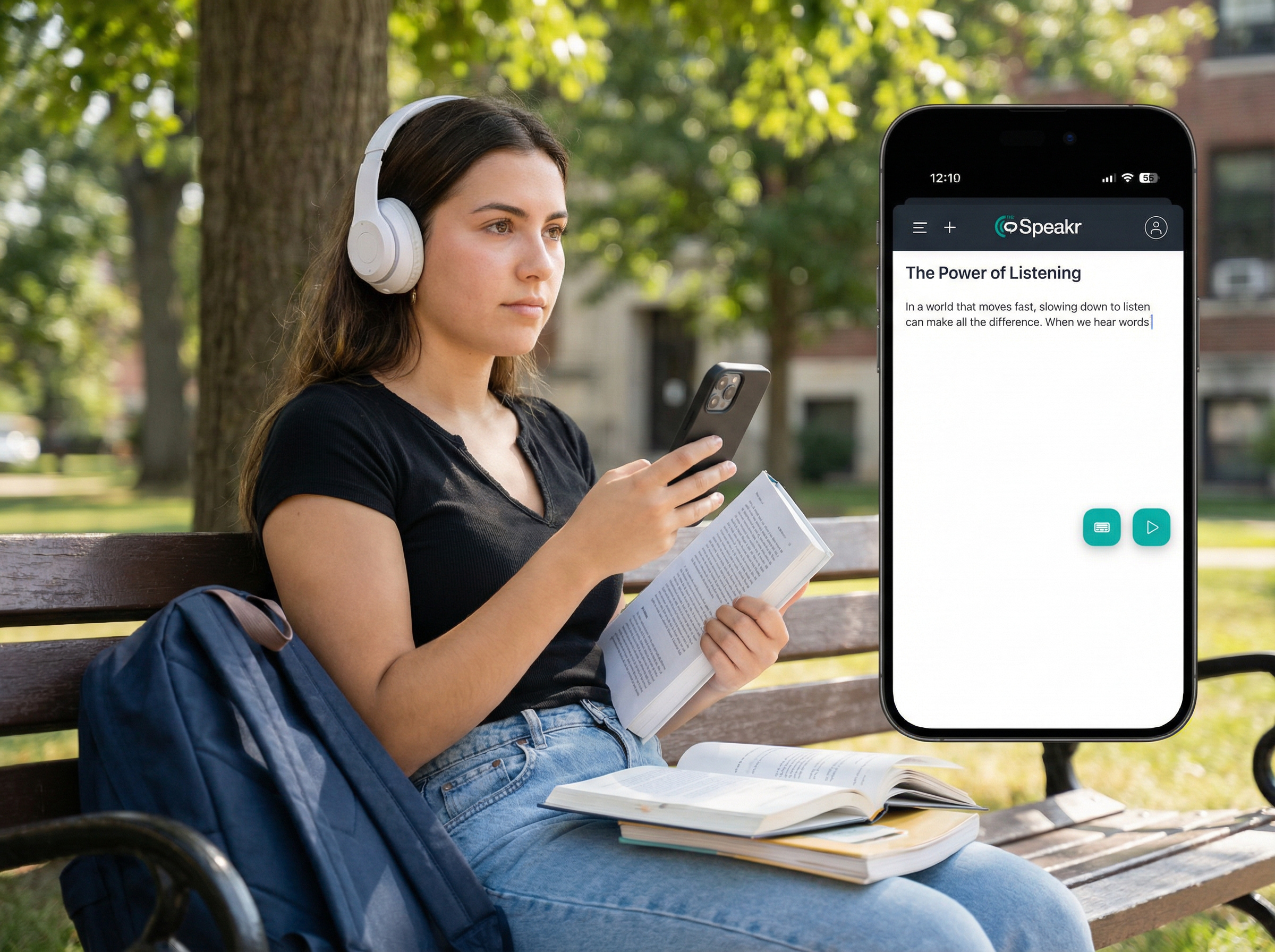
TheSpeakr combines OCR and text-to-speech in one workflow, so you can turn text from photos, screenshots, and scanned documents into spoken audio without manually retyping the content. The process is straightforward: upload an image, extract the text with OCR, check the result, choose a voice and playback speed, and start listening.
Step 1: Upload a Photo, Screenshot, or Scan
Open TheSpeakr in your browser or mobile app and select the option for working with an image or OCR-based content. Then choose the picture containing the text you want to hear.
You can use a photo of a printed page, a screenshot, or a scanned document. For better results, make sure the text is clear, the image is correctly oriented, and unnecessary background areas are cropped out. For example, if you have a screenshot of a long email, article, or study material, you can upload the image directly instead of typing the text manually.
Step 2: Extract the Text With OCR
After you upload the image, TheSpeakr uses optical character recognition to detect the visible text and convert it into a format that can be read aloud.
OCR is necessary because text inside a photo or screenshot is stored as part of the image rather than as selectable text. Once the words have been recognized, they can be converted into spoken audio. Clear printed text usually produces the best results. Blurry images, unusual fonts, low contrast, or complex layouts may require a closer check before generating the audio.
Step 3: Check the Recognized Text
Before generating the audio, quickly check that the recognized text matches the original image. Pay particular attention to names, numbers, dates, abbreviations, and other details where a small OCR error could change the meaning.
OCR can occasionally confuse visually similar characters. For example:
| Original text | Possible OCR result |
| Meeting at 10:00 AM | Meeting at IO AM |
| Room 101 | Room lOl |
| Order #5080 | Order #5O8O |
If you notice an error, correct the recognized text when editing is available or upload a clearer version of the image and process it again. This is especially useful for financial documents, instructions, research material, or any content where exact wording and numbers matter.
A quick review at this stage helps ensure that the generated audio accurately reflects the text you want to hear.
Step 4: Choose a Voice and Speaking Speed
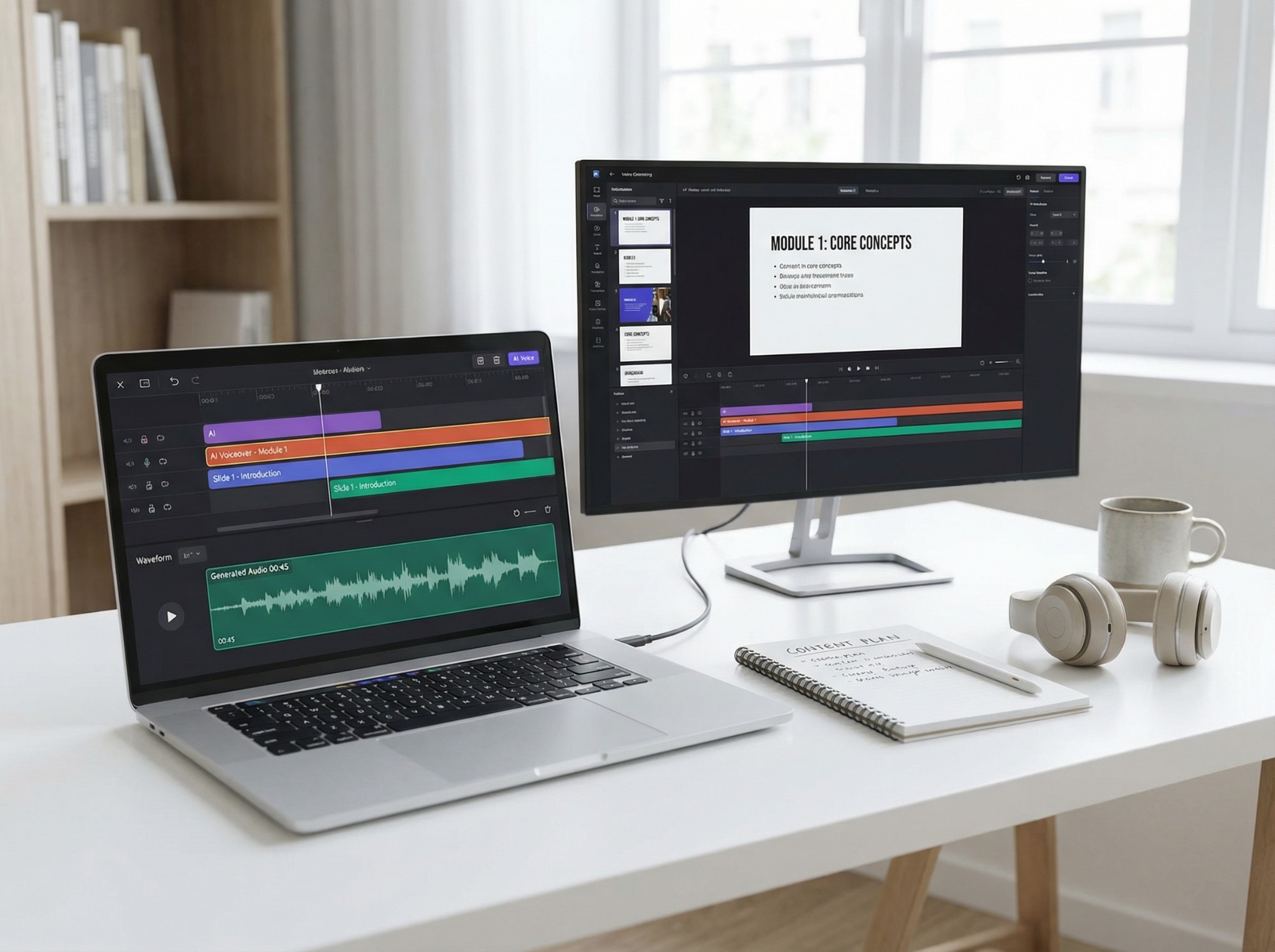
Once the text is ready, choose a voice and adjust the speaking speed to match the content and your listening preferences. TheSpeakr gives you flexibility to customize how the recognized text is read aloud.
A normal pace is a good starting point for most content. You can slow the speech down for technical explanations, unfamiliar terminology, or language-learning material, and increase the speed when listening to familiar text or reviewing content you already know.
You can also try different available voices to find one that feels comfortable for longer listening sessions. Choose a voice that matches the language of the recognized text so the content is pronounced appropriately.
Step 5: Generate the Audio and Start Listening
Once the text, voice, and speaking speed are ready, generate the audio and listen to a short section to make sure everything sounds as expected. Pay particular attention to names, numbers, and content from images with multiple columns or unusual layouts.
If you hear an incorrect word or the content is read in the wrong order, check the recognized text against the original image, make any necessary corrections, and generate the audio again.
TheSpeakr also lets you download the generated audio as an MP3. This makes it easy to save image-based content for later and continue listening on your phone, computer, or another compatible audio player.
What Is Image-to-Speech and How Does It Work?
Image-to-speech converts visible text in an image into spoken audio. It usually combines two technologies: optical character recognition (OCR), which detects and extracts written text, and text-to-speech (TTS), which turns the recognized text into audio.
The process works in two main stages. First, OCR analyzes a photo, screenshot, or scanned page and converts the visible words into machine-readable text. Then TTS takes that extracted text and reads it aloud using a selected voice.
For example, if you photograph a printed recipe, OCR can recognize the ingredients and instructions as text. Once the text has been recognized, text-to-speech converts it into spoken audio. Together, OCR and TTS make it possible to listen to image-based content without manually retyping the text.
Complex images may still benefit from a quick visual check. Documents with multiple columns, tables, diagrams, or unusual layouts can contain correctly recognized words while the reading order or surrounding context needs closer review. For more examples of how this process can be used, see the guide to OCR-to-speech technology and its use cases.
What Types of Images Can Be Read Aloud?
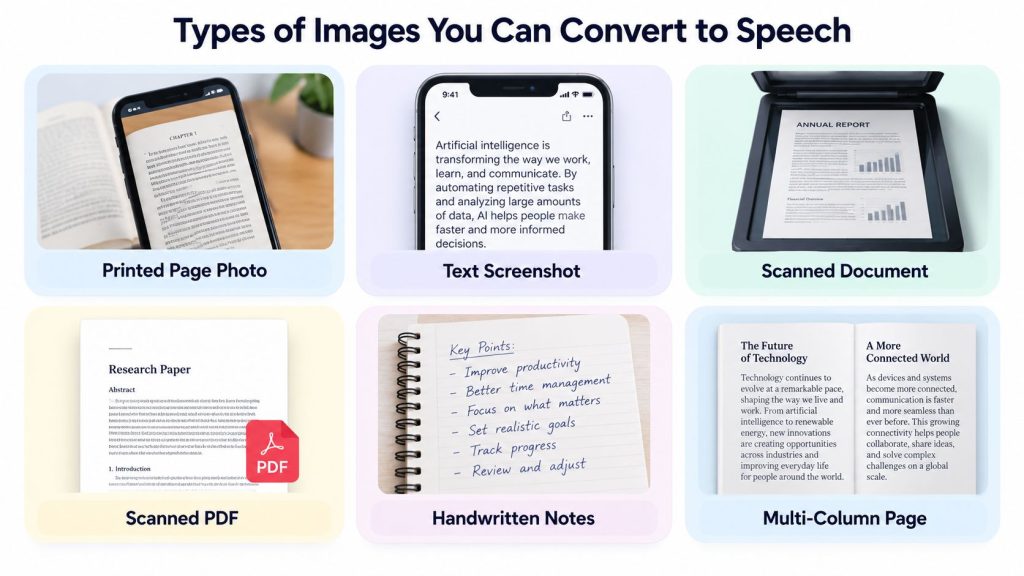
Image-to-speech can work with several types of image-based content, including photos of printed text, screenshots, scanned documents, scanned PDFs, and handwritten notes. The quality of the result depends largely on how clearly the text appears in the original image.
| Image or document type | Recommended approach | What to check |
| Photo of printed text | Use OCR to recognize the text before converting it to speech | Focus, lighting, and perspective |
| Screenshot containing text | Extract the visible text with OCR | Menus, buttons, and other unwanted text |
| Scanned document | Recognize the page with OCR | Missing words and reading order |
| Scanned PDF | Use OCR before converting the recognized text to speech | Text recognition and page order |
| Handwritten notes | Use OCR and review the recognized text | Unclear letters, missing words, and spacing |
| Multi-column page | Extract the text and check the reading sequence | Paragraph and column order |
Clear, high-contrast images with readable text generally produce the best results. Blurry photos, unusual layouts, small text, handwriting, or pages photographed at an angle can require a closer review before generating the final audio.
How to Improve OCR Accuracy Before Listening
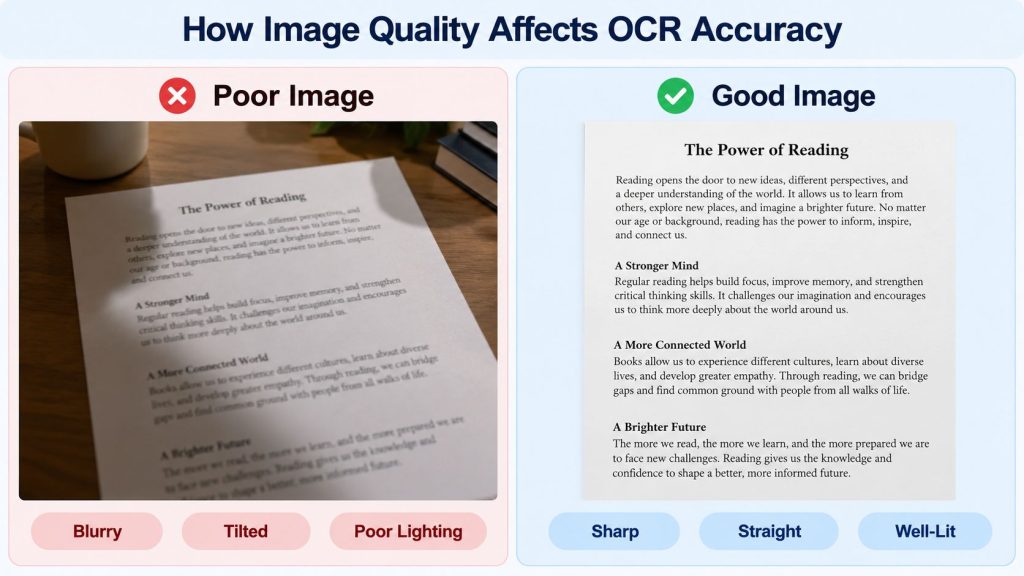
OCR works best when the text in the original image is clear, readable, and well positioned. Blurry letters, poor lighting, low contrast, or distorted pages can lead to recognition errors that are then carried into the generated audio.
A few simple preparation steps can improve the result before you convert the image into speech.
Use a Sharp, Well-Lit Image
Make sure the text is in focus and easy to read. When photographing a printed page, use even lighting, keep the camera steady, and avoid reflections, shadows, and motion blur.
If the text already looks unclear when you zoom in, take a new photo or use a higher-quality scan before running OCR.
Keep the Page Straight
Photograph the page as directly as possible rather than from a steep angle. Distorted lines and tilted text can make recognition more difficult and may affect the reading order.
If necessary, rotate or straighten the image before uploading it. For books or folded pages, make sure the text near the edges or binding remains visible.
Crop Unnecessary Content
Screenshots and photos can include menus, buttons, advertisements, timestamps, or other text that you do not want to hear. Crop the image so OCR focuses on the relevant content.
For complex pages, it can also be useful to process smaller sections separately. This can make the recognized text easier to review and reduce unwanted content in the audio.
Use the Clearest Available Version
Whenever possible, upload the original image or a high-quality scan rather than a compressed copy or small thumbnail. Clear text with good contrast against the background is generally easier for OCR to recognize.
Avoid excessive filters or sharpening that can change the shape of letters. If a scan is difficult to read, creating a cleaner version is usually more effective than repeatedly processing the same low-quality image.
When Is Converting an Image to Audio Most Useful?
Image-to-speech is especially useful when the text you want to hear is available as a photo, screenshot, scan, or other image rather than editable text. It lets you turn that content into audio without manually retyping it and can make listening more convenient when continuous screen reading does not fit your situation.
Printed Study Materials and Textbooks
Students can photograph printed notes, textbook pages, handouts, or reading assignments and use OCR to extract the text before converting it into audio. They can then listen while following along with the original material or review the content away from the page.
For material containing equations, charts, diagrams, or technical symbols, keep the original page available so important visual information can be reviewed alongside the audio.
Screenshots and Saved Content
Screenshots of articles, instructions, emails, messages, or other useful information can be converted into speech without manually copying the text. This can be convenient when content has been saved as an image and you want to listen to it later.
Cropping unnecessary menus, buttons, and other interface elements before processing the screenshot can help keep the resulting audio focused on the content you actually want to hear.
Printed Work Documents and Scanned Materials
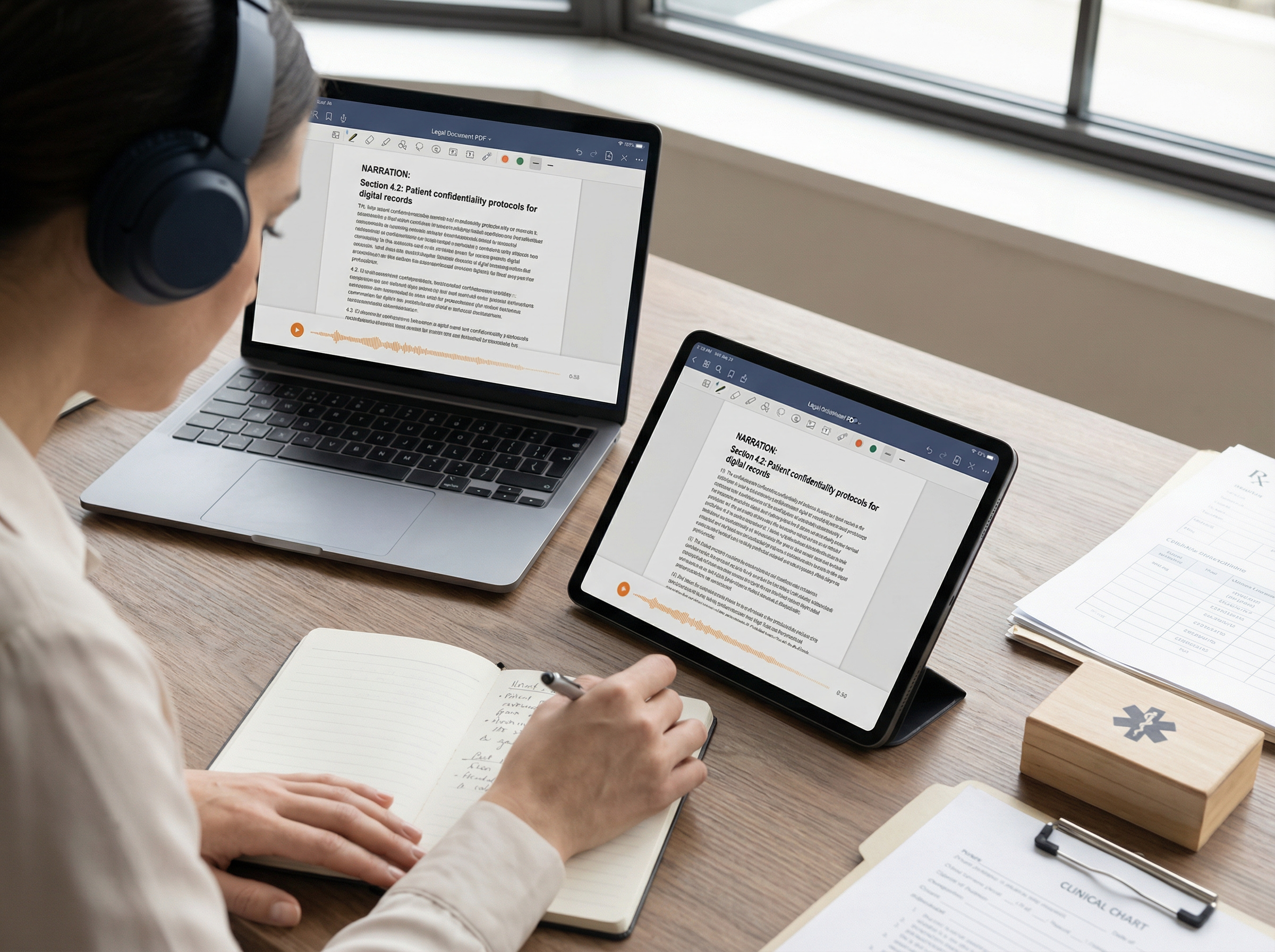
OCR-to-speech can also be useful for printed reports, meeting notes, scanned documents, instructions, and other work-related material. Instead of retyping the document, you can recognize the text and turn it into audio for review.
When exact names, figures, dates, or other important details matter, compare the recognized text with the original document before relying on the audio.
Language and Pronunciation Practice
Printed vocabulary lists, study materials, and short passages in another language can be converted into audio to hear the recognized text spoken aloud. Choose a voice that matches the language of the source material and replay difficult sections as needed.
This can support vocabulary and listening practice, especially when you want to connect written words with their spoken form. Checking the OCR result first helps ensure that the audio is based on the correct text.
These are just some of the ways image-to-speech technology can be used with everyday image-based content, from study materials and screenshots to scanned documents and language practice.
Final Thoughts: Turn Text in Pictures Into Audio
Image-to-speech makes it easy to turn text from photos, screenshots, scanned pages, and other image-based content into spoken audio. By combining OCR with text-to-speech, you can listen to written material without manually retyping it.
For the best results, start with a clear image, review the recognized text, and check the reading order before generating the final audio. Once the content is ready, you can choose a voice and playback speed that suit the material.
With TheSpeakr, OCR and text-to-speech are available in one workflow, making it simple to move from an image to generated audio and download the result for later listening.
Frequently Asked Questions About Image-to-Speech
How Do I Turn an Image Into Speech?
Upload a photo, screenshot, scan, or other supported image to a tool that combines OCR with text-to-speech. OCR recognizes the visible text, after which you can review it, choose a voice and playback speed, and generate the audio.
Can AI Read Text From a Photo?
OCR can recognize written text in a photograph, and text-to-speech can then convert that recognized text into spoken audio. Clear, well-lit images with readable text generally produce better results than blurry, low-contrast, or unusually formatted images.
Can I Have a Screenshot Read Aloud?
Screenshots containing visible text can be processed with OCR and converted into speech. For cleaner results, crop menus, advertisements, buttons, and other unnecessary interface elements before processing the screenshot.
Can Image-to-Speech Read Handwritten Notes?
Yes, OCR can be used with handwritten notes, although recognition may vary depending on handwriting style and image quality. Clear, well-spaced handwriting is generally easier to recognize. Always check important names, numbers, dates, and other details before generating the final audio.
Can I Convert an Image Into an MP3 File?
Yes, when the text-to-speech tool supports audio downloads. TheSpeakr lets you convert recognized image text into speech and download the generated audio as an MP3 for later listening.
Can Image-to-Speech Describe a Photograph?
Image-to-speech based on OCR is designed to read visible written text rather than describe everything shown in a photograph. If an image contains no readable text, there may be nothing for the OCR-to-speech workflow to convert into audio.
Describing objects, people, or scenes in an image requires a different type of image-understanding technology.